The Complete Guide to Adding Your Robot Vacuum to Apple HomeKit and Siri
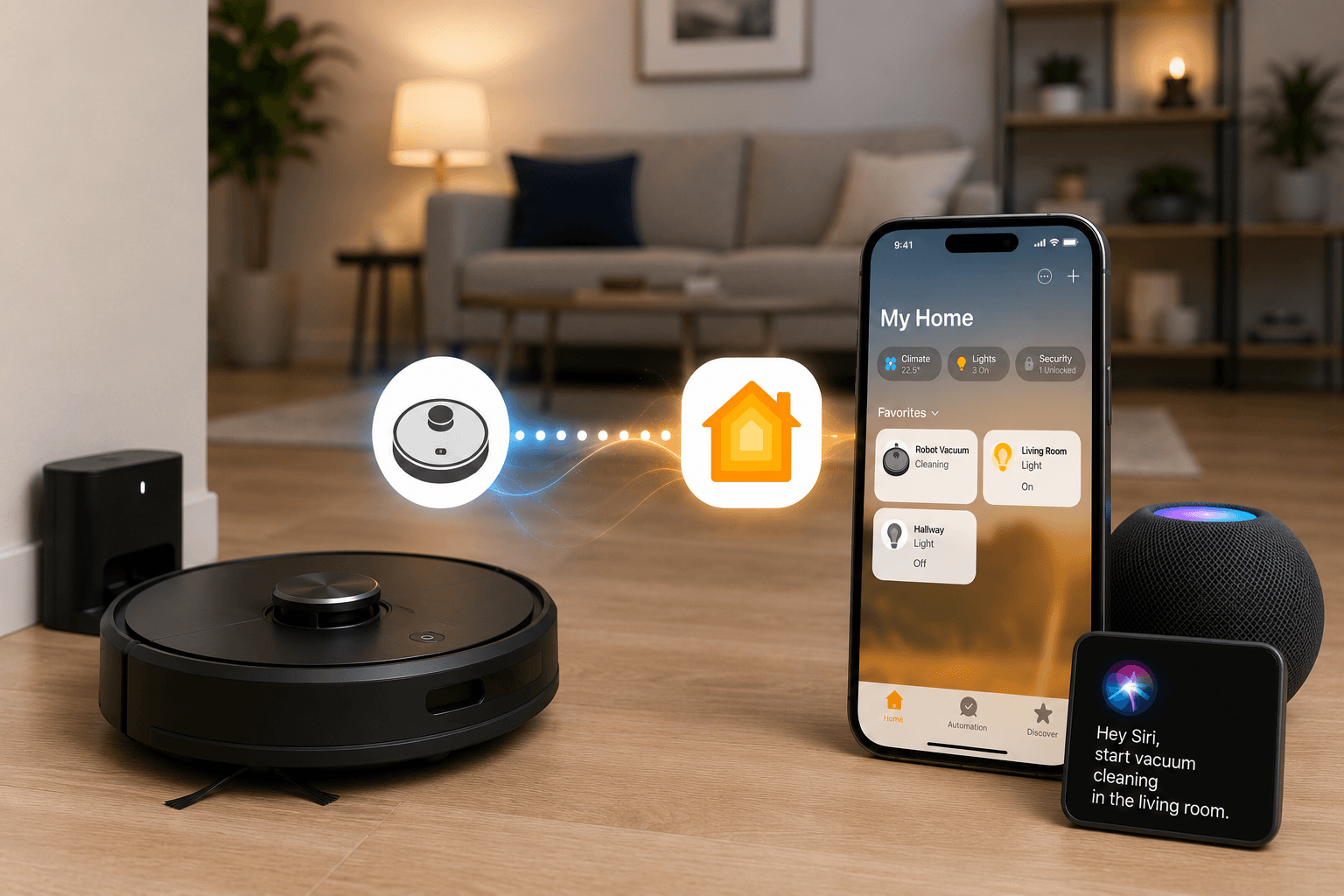

Apple officially added robot vacuum support to the Apple Home app using the Matter smart home standard with the release of iOS 18.4. This means you can now control compatible robot vacuums just like lights, locks, and thermostats using the Home app or Siri voice commands.
This guide explains exactly how to connect your robot vacuum to Apple HomeKit, whether it supports Matter or not.
Prerequisites: What You Need Before You Start
Before attempting any integration method, ensure you have the following components ready:
- An Apple Device: An iPhone or iPad updated to iOS 18.4 / iPadOS 18.4 or later.
- An Apple Home Hub: A permanently powered, updated HomePod (any generation), HomePod mini, or Apple TV 4K to handle the local Matter network routing.
- A Local Connection: Your iOS device must be on the same 2.4GHz or 5GHz Wi-Fi network as your robot vacuum.
- Updated Vacuum Firmware: Use the vacuum manufacturer's native app to download and install the latest firmware updates.
Method 1: Native Connection via Matter (Best Experience)
If you own a modern robot vacuum that natively supports the Matter standard. The most straightforward way to add your robot vacuum to HomeKit is through Matter, the universal smart home standard that lets devices work across Apple Home, Google Home, and Amazon Alexa.
Step-by-Step Setup
1. Onboard the vacuum in the manufacturer's app first
Start by setting up your robot vacuum using its dedicated app (e.g., SwitchBot app, Roborock app, iRobot Home app). Complete the Wi-Fi connection and room mapping process.
2. Generate the Matter pairing code
Within the manufacturer's app, navigate to the Matter setup section. The app will generate a Matter pairing code or QR code.
3. Add the accessory in Apple Home
- Open the Home app on your iPhone
- Tap the + icon and select Add Accessory
- Scan the Matter QR code or enter the pairing code manually
- Follow the on-screen instructions
4. Name and assign your vacuum
Give your vacuum a clear name like "Living Room Vacuum" for easy voice control with Siri, and assign it to the appropriate room.
For iRobot Roomba Users
iRobot has rolled out Matter support to multiple Roomba models, including the Roomba Combo 10 Max, Roomba Plus 500 Combo, Roomba Max 700 Vac, and Roomba Max 700 Combo. To add your Roomba:
- Open the Roomba Home app
- Tap My Home → Account icon → Connected Services → Apple Home
- Follow the directions to complete the Matter pairing
Method 2: AddtoHomeKit [Recommended Solution]
AddToHomeKit is a software solution that integrates incompatible Ring devices including doorbells, cameras, and alarm systems with Apple HomeKit. It offers hundreds of plugins that make Ring work with HomeKit.
Step-by-Step Setup Guide
Follow these simple steps to create your Ring Video Doorbell Apple HomeKit integration:
- Visit the AddToHomeKit official website
- Select "Ring" as your ecosystem
- Choose your preferred solution and click "Add to Home"
- Select your preferred operating system
- Install the HomeBridge Plugin provided
- Click on the activation package
- Follow the on-screen instructions to complete setup
What You Can Control Inside the Apple Home App
Once added natively, your robot vacuum exposes core functionalities directly inside Apple's Control Center and Home app:
- Power Controls: Start, pause, resume, or completely halt a cleaning cycle.
- Dock Commands: Send the vacuum back to its self-emptying or charging station instantly.
- Mode Toggling: Switch seamlessly between Vacuuming, Mopping, or Combined Clean modes.
- Room-Specific Cleaning: Target specific spaces (available on advanced vacuums supporting Matter 1.4 features).
- Automations & Scenes: Build custom rules, such as automatically running the vacuum the moment the last person leaves the house (using geofencing), or pausing the vacuum when someone rings your HomeKit doorbell.
Important Limitation
The Home app doesn't yet support all advanced features. You'll still need the manufacturer's app for:
- Room mapping and no-go zones
- Firmware updates
- Object avoidance settings
- Custom cleaning routes
- Detailed scheduling
Method 3: Control via Siri Shortcuts (Quick Voice Setup for Non-Matter Vacuums)
If your vacuum does not feature Matter compatibility but has an official iOS app, you can still gain immediate hands-free voice control by using Siri Shortcuts. Note: This method enables voice triggers but will not place a physical tile icon inside your Apple Home app.Step-by-Step Instructions
- Configure Your Maps: Open your vacuum’s native app, map your home layout, and save your preferred cleaning routines (e.g., "Clean Kitchen" or "Max Suction Clean").
- Open Siri Shortcuts: Launch the built-in Shortcuts app on your iOS device.
- Create a New Rule: Tap the "+" icon in the upper-right corner of the screen.
- Bind the App Action: Tap Add Action, select the Apps tab, and find your vacuum's companion app.
- Select the Routine: Tap on the pre-configured cleaning action you wish to automate (such as "Start Quick Clean").
- Name the Voice Command: Rename the shortcut to a natural phrase. Whatever you name this shortcut is exactly what you will say to trigger it. For example, naming it "Vacuum the House" allows you to activate it by saying: "Hey Siri, Vacuum the House."
Method 4: Advanced Integration via Homebridge or HOOBS (Full HomeKit for Legacy Devices)
For tech-savvy users who own legacy, non-Matter vacuums (like older iRobot Roombas or early Xiaomi models) but still want a full, physical control switch inside the Apple Home app, an open-source local server platform is the ultimate solution.How the Bridging Architecture Works
- The Server: You run a lightweight software platform like Homebridge or HOOBS on a local device that stays turned on 2.47 (such as a Raspberry Pi, an old Mac mini, or a network-attached storage drive).
- The Plugin: You install a dedicated brand plugin from the community library (e.g.,
homebridge-xiaomi-roborock-vacuum). - The Credentials: You retrieve your vacuum's local IP address and unique security token using simple extraction tools provided by the plugin developers.
- The Handshake: Once configured, Homebridge projects a master HomeKit QR code. You scan this code with your Apple Home app to instantly import your legacy vacuum as a native switch or fan accessory.
Current Industry Compatibility (2026 Model Overview)
The following popular brands feature select models equipped with native Matter support or reliable bridge plugins:
- Ecovacs: Fully supports native Matter setups on premium units like the Deebot X2 Series, T50 Omni/Max, and the X8/X9 Pro Omni lineups.
- Roborock: Easily integrates via Matter on the flagship S8 MaxV Ultra, Qrevo Series, and the Saros Series. Older models enjoy robust community support via Homebridge.
- SwitchBot: The newer S20 lineup offers direct Matter communication, while older ultra-compact models like the K11+ utilize the SwitchBot Hub 2 to act as a Matter bridge.
- iRobot (Roomba): Premium flagship options like the Combo 10 Max and newer Roomba Plus 500 Series speak Matter natively.
- Dreame & Eufy: High-end models including the Dreame X50/X40 Ultra and Eufy E28 offer direct smart home pairing options.
Understanding the Current Limitations
While native support is a massive leap forward for convenience, Apple Home does not completely replace your vacuum's standalone app. The ecosystem currently exhibits these limitations:
- Advanced Map Management: You cannot edit virtual barriers, adjust restricted "no-go" zones, or fine-tune multi-floor layouts inside Apple Home.
- Deep Maintenance Tracking: Checking brush wear-and-tear percentages, filter life indicators, and water tank statuses still requires checking the manufacturer's app.
- Sensor Sensitivity Settings: Customizing advanced AI obstacle avoidance modes or camera streaming behaviors remains locked to the official client for privacy and proprietary reasons.
Controlling Your Vacuum with Siri
This is where the magic happens. Once your vacuum is in the Home app, you can control it with voice commands:
| Command | What It Does |
|---|---|
| "Hey Siri, start vacuuming." | Begins a cleaning cycle |
| "Hey Siri, vacuum the kitchen." | Cleans a specific room |
| "Hey Siri, vacuum and mop the living room." | For combo units |
| "Hey Siri, stop cleaning." | Pauses the current cycle |
| "Hey Siri, send the vacuum back to the dock." | Returns the robot to its charger |
| "Hey Siri, clean the whole house." | Full-home cleaning |
Note: If your vacuum supports both vacuuming and mopping, you need to specify both actions in your Siri command.
Automations and Scenes
One of the biggest benefits of HomeKit integration is the ability to create automations that include your robot vacuum.
Automation Ideas
- "Good Morning" scene – Start vacuuming when you wake up
- Leave home trigger – Automatically start cleaning when the last person leaves
- Schedule-based – Clean at specific times each day
- Sensor-triggered – Start cleaning when a motion sensor detects no activity
- "Good Night" routine – Tidy up before bed
To create an automation:
- Open the Home app
- Tap Automation → Create New Automation
- Choose a trigger (time, people arriving/leaving, or accessory state)
- Select your vacuum and set the action
Siri Shortcuts (Alternative Method)
Even without full HomeKit integration, many robot vacuum apps offer Siri Shortcuts support. These allow you to create custom voice commands through the Shortcuts app.
How to Use Siri Shortcuts
- Open the manufacturer's app (e.g., SwitchBot, Roborock, Ecovacs)
- Look for Siri Shortcuts in the app settings
- Add specific actions (clean a room, return to dock, adjust suction)
- Assign a custom phrase to trigger the shortcut
- Say "Hey Siri" + your custom phrase to control the vacuum
Troubleshooting Common Issues
Vacuum Not Appearing in Home App
- Ensure your vacuum is Matter-certified
- Confirm iOS 18.4 or later is installed
- Restart your Matter hub (HomePod or Apple TV)
- Check that the vacuum is on the same Wi-Fi network
"Not Supported" Error
- Your device is running an older iOS version – update to iOS 18.4 or later
Rooms Not Syncing
- Room mapping must be configured in the manufacturer's app first
- After updating your smart map, room switches may need to be refreshed
Vacuum Not Responding to Siri
- Restart your Matter hub
- Ensure the hub is connected to the same network
- Restart your iPhone or iPad
Vacuum Shows "No Response" in HomeKit
- Restart the vacuum
- Check for firmware updates in the manufacturer's app
- Unplug and replug your home hubs (HomePod, Apple TV)
- Restart your modem and router
Homebridge-Specific Issues
- Clear cached accessories in Homebridge
- Check for third-party plugin conflicts
Compatible Robot Vacuums in 2026
Here are some of the leading Matter-enabled robot vacuums that work with Apple HomeKit:
Is Matter Worth It?
Matter integration earns its keep in specific situations:
Consider Matter if:
- You want Siri voice control
- You want to chain your vacuum to other Home accessories in automations
- You want cleaning status surfaced across your Apple devices
Skip Matter if:
- You mostly use schedules and manage the robot from its own app
- Your preferred model doesn't support it
- Non-Matter models offer better value for your budget
Best Overall for Apple Home
SwitchBot S20 — Matter-enabled, lists at $799 and frequently drops below $500 on sale. Handles hair and fur without incident across months of testing.
Dreame X50 Ultra — The most capable Matter robot vacuum on the market. With 12,000Pa suction, AI obstacle avoidance, and a fully self-maintaining base station, it's a true set-and-forget cleaning machine
Final Thoughts
Adding your robot vacuum to Apple HomeKit and Siri is now easier than ever, thanks to iOS 18.4 and the Matter standard. While the Home app doesn't yet offer the full feature set of manufacturer apps, it provides the essentials—voice control, basic cleaning commands, and powerful automations—all in one place.
The smart home ecosystem is evolving rapidly, and with more brands adopting Matter every month, the list of compatible vacuums will only grow. Whether you choose a native Matter vacuum or use Homebridge as a bridge, the ability to tell Siri to clean your floors is a convenience that's hard to beat.
Frequently Asked Questions
Can I start my Matter robot vacuum with Siri?
Yes. Once added to Apple Home via Matter, you can say "Hey Siri, start the vacuum" or include it in automations.
Do Matter robot vacuums support room-specific cleaning?
Yes — for clients that support area selection. Room selection requires setup in the manufacturer's app first.
What iOS version do I need?
iOS 18.4 or higher.
Do I need a Home hub?
Yes. You need a HomePod, HomePod mini, or Apple TV.
Can I use my robot vacuum with both Apple Home and Google Home?
Yes — Matter is designed to be cross-platform. You can connect to both, though you must pair one at a time.
Does Homebridge 2.0 support robot vacuums?
Yes. Homebridge 2.0 adds Matter support, allowing robot vacuums to appear in Apple Home through Homebridge.
What about Amazon Alexa?
Matter robot vacuums work with Alexa too. However, Matic notes that Alexa is not yet supported for their model (though it's on their roadmap).
How do I know if my vacuum is Matter-certified?
Check the manufacturer's product page or look for the CSA Matter certification mark.
Can I use the locate feature in the Home app?
Yes, the Home app supports a lost-vacuum chime. However, some models (like Matic) may not support this feature in the Home app.
Will the Home app replace the manufacturer's app?
No. The Home app provides basic controls and automations. You'll still need the manufacturer's app for mapping, no-go zones, firmware updates, and advanced settings