Philips Hue HomeKit Setup: Add Hue to the Apple Home App


Philips Hue is one of the most popular smart lighting systems, and connecting it to the Apple Home app works seamlessly through Apple HomeKit and the Hue Bridge. In this guide, I'll walk you through the official Philips Hue Apple Home setup, how Matter enables setup with or without a bridge, and alternative bridging methods for advanced setups.
Quick Answer: Philips Hue connects to Apple Home through the Hue Bridge, which links your lights to Apple’s HomeKit framework so they show up in the Home app with Siri, scenes and automations. To set it up, open the Philips Hue app, go to Settings > Smart home & voice > Siri & Apple Home, and follow the prompts. Without a bridge, only newer Hue bulbs with Matter over Thread can join Apple Home directly, using an Apple TV or HomePod as the home hub, while Bluetooth-only Hue bulbs still need a Hue Bridge.
How Do You Add Philips Hue to the Apple Home App with the Hue Bridge?
What you need: A Hue Bridge (square model) or Hue Bridge Pro, your Hue lights already working in the Philips Hue app, an iPhone or iPad with the Home app, and an Apple TV or HomePod as a home hub for remote access and automations.
Step-by-Step Setup Guide
-
Open Settings in Hue App
Open the Philips Hue app on your mobile device and tap Settings.
-
Go to Smart Home & Voice
Tap Smart home & voice from the settings menu.
-
Select Siri & Apple Home
Choose Siri & Apple Home, then tap Set up.
-
Sign in to Hue Account
Sign in with your Philips Hue account credentials when prompted.
-
Choose Your Apple Home
Pick the home you want to use in Apple Home, or create a new home setup.
-
Complete Light Setup
Follow the on-screen prompts to pair your lights, then tap Done.
-
Assign Lights in Apple Home
Open the Apple Home app and move each paired Hue light into its correct room.
For more details, refer to the official Philips Hue Apple Home setup guide.
The Hue Bridge is the official way to connect Philips Hue to Apple Home. If you want more than the native integration offers, there are 4 Homebridge-based options.
AddToHomeKit
AddToHomeKit is a third-party solution to connect any HomeKit-incompatible device to Apple HomeKit. It provides web and app solutions to integrate my Hue devices with Apple Home.
Also, AddToHomeKit offers HomeKit configuration plugins and step-by-step guides to follow when adding devices to HomeKit through AddToHomeKit. They also give you the recommended software solution and recommended hardware solution to integrate Philips Hue devices with Apple Home. Personally, I love using AddToHomeKit to bring my Hue lights into Apple Home.
Connect Philips Hue HomeKit Using AddtoHomeKit
- Go to the AddtoHomeKit official website.
- Select the Philips Hue ecosystem.
- Once you are directed to the next page, select your preferred solution.
- Now select the operating system.
- Install the Hue HomeBridge Plugin.
- Tap on Add to HomeKit.
- Click on the Activation package to activate your account.
- Follow the instructions displayed on the screen.
Why Connect Philips Hue to Apple HomeKit?
Connecting Philips Hue to Apple HomeKit offers powerful benefits. You can control your Hue lights using Siri and manage everything through the Apple Home app. You can interact with other HomeKit-compatible devices with Philips HomeKit integration.
- Seamless integration with Apple ecosystem
- Unified control
- Remote access
- Enhanced privacy & security
- Adaptive lighting support
Alternative Philips Hue HomeKit Solutions
There are a few alternative options to adding Philips Hue to HomeKit. Not only Hue devices, but all these methods can also be used to add Geeni Camera HomeKit and Dahua HomeKit.
ATH Bridge [Most Affordable Solution]
When I was looking for a cost-effective option, ATH Bridge came to help me. It’s a simple device solution that enables you to add smart devices to HomeKit. With ATH Bridge, I can combine my Philips lights with Apple HomeKit.
ATH Bridge is a small plug and play device. It is basically a pre-flashed HomeBridge server. To operate it, you just need to download the plugins and configure them. It acts as a bridge between your Hue lights and HomeKit, so they appear in the Apple Home app.
HOOBS
HOOBS or HomeBridge Out of the Box is an updated version of HomeBridge. It is user-friendly compared to HomeBridge. HOOBS is the most popular open-source software available. HOOBS is a bit complicated. But if you have a little bit of coding knowledge, it should be manageable.
Connect Hue and HomeKit Using HOOBS
- Setup HOOBS
- Install Philips Hue Plugins
- Configure Devices
- Add HOOBS to Apple Home
Install HOOBS on a compatible device like a Raspberry Pi or a PC. Follow the setup instructions provided by HOOBS.
Access the HOOBS dashboard and search for a hue homebridge plugin. Install the relevant plugins to enable communication between HOOBS and your Philips Hue devices.
Enter your Hue device's details into the HOOBS configuration. This will enable HOOBS to recognize and integrate your devices into HomeKit.
Open the Apple Home app, tap Add Accessory, and scan the HOOBS setup code. Your Hue lights then appear in the Home app and work with Siri.
HomeBridge
Finally, the HomeBridge Solution. It is an open-source software platform. It integrates non-HomeKit compatible devices into Apple HomeKit. I would say that if you’re a technical person, this is the best solution for you to integrate. As for the question of how to add any smart home devices to HomeKit with HomeBridge, you need to acquire hardware such as a Raspberry Pi.
Connect Hue and Apple HomeKit Using HomeBridge
- Install HomeBridge
- Add plugins
- Configure Plugins
- Add Homebridge to Apple Home
Set up HomeBridge on a compatible device. This could be a Raspberry Pi, a dedicated server, or a Docker container.
Find and install the necessary HomeBridge plugins for Philips Hue devices. These plugins are available from the Homebridge repository or from community sources.
Edit the HomeBridge configuration file to include your Philips Hue lights. You'll need to input device specific details to enable proper communication.
Scan the Homebridge QR code in the Apple Home app to add the bridge, then control your Hue lights from the Home app and Siri.
Using Philips Hue with Matter in Apple Home
The standard Hue Bridge can connect to Apple Home through HomeKit or Matter, and the Hue Bridge Pro uses Matter. Newer Hue bulbs with Matter over Thread can also join Apple Home directly. Matter does not support gradient effects yet, so gradient lights keep their full feature set only in the Hue app.
Philips Hue Bridge
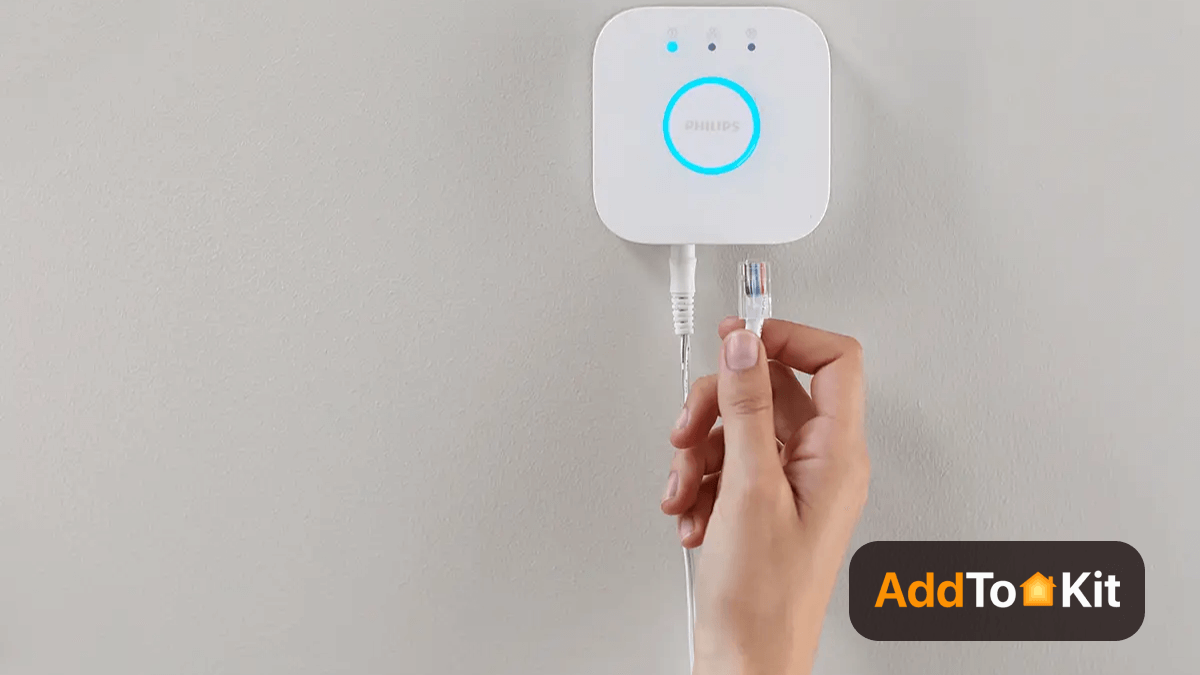
The Hue Bridge is the hub that connects your Hue lights and accessories to the Hue app and to Apple Home. It supports both HomeKit and Matter. Hue Secure cameras are managed in the Hue app and do not appear in Apple Home yet.
- Automatic system update
- Voice assistant support
- Build your own system
- Home away control
Pros and Cons
Reasons to Buy
- Lights can be controlled remotely using the app.
- Set fixed routines.
- Expansion ability of the system.
Reasons to Avoid
- Needs a free Ethernet port on your router.
Editor's Pick: Which Method Should You Choose?
For most users, the native Philips Hue Bridge is the best and most reliable option to connect Hue lights to Apple Home. It provides official HomeKit and Matter integration with zero coding and instant setup through the Hue app.
However, if you want to integrate non-Hue Zigbee accessories, expose unsupported device types, or manage more of your smart home through one Homebridge setup, AddToHomeKit (software) and ATH Bridge (plug-and-play hardware) are the ideal choices. They give advanced users the flexibility of Homebridge without the complex setup process.
FAQs
Yes. Philips Hue works with Apple HomeKit through the Hue Bridge, with no third-party software required. Connect the bridge in the Philips Hue app under Settings > Smart home & voice > Siri & Apple Home, and your lights appear in the Apple Home app for Siri, scenes, and automations.
In most cases, yes. Hue lights that only use Bluetooth and Zigbee need a Hue Bridge or Hue Bridge Pro to appear in Apple Home. Newer Hue bulbs that support Matter over Thread can be added directly to the Home app, but you need an Apple home hub that works as a Thread border router.
Yes, but not through HomeKit. The Hue Bridge Pro connects to Apple Home through Matter instead of the classic HomeKit connection used by the standard Hue Bridge. If you migrate from an older bridge, reconnect Apple Home through Matter in the Hue app afterwards.
Yes. Once your Hue Bridge is added to Apple Home, you can ask Siri to turn lights on or off, dim them, change colors, or run scenes from an iPhone, iPad, Apple Watch, HomePod, or Apple TV. Use the room and light names shown in the Home app.
Yes. An Apple TV or HomePod acts as the home hub for Apple Home, which gives you remote access and lets Hue automations run when you are away. You can also control Hue lights that are in Apple Home from the Apple TV using Siri.
Yes. Hue lights added to Apple Home can be controlled from the Home app on Apple Watch or with Siri on your wrist. You can switch individual lights, adjust brightness, and trigger scenes without reaching for your iPhone.
Not yet. As of October 2026, Philips Hue Secure cameras and the video doorbell do not appear in Apple Home, even though Hue lights do. Philips Hue announced Apple Home support for its wired Secure cameras but has not released it, so check the Hue release notes before buying for Apple Home.