How to Add Dahua Smart Devices to Apple HomeKit

What if I told you that your Dahua smart devices could work seamlessly with Apple HomeKit, but most people don’t know how to make it happen? It’s easier than you think!
In this guide, I’ll show you how to connect your Dahua devices to HomeKit and unlock a whole new level of convenience and automation for your home. Let’s get started!
How Can You Add Dahua to Apple HomeKit?
- AddToHomeKit [Editor’s Pick]
- ATH Bridge [Affordable Method]
- HOOBS
- HomeBridge
AddToHomeKit [Editor’s Pick]
Dahua AddtoHomeKit is an amazing tool that allows you to add many devices to Apple HomeKit. It is not time-consuming, and you have pretty much nothing to do. Just to give a small explanation it is a third-party solution that provides multiple plugins for a huge variety of devices which is amazing, these plugins and step-by-step guides help you to add Dahua with Apple Home Kit integration.
It gives you web solution and app solution to integrate your Dahua devices with Apple Home.
Connect Dahua to HomeKit using AddtoHomeKit
- Go to the AddtoHomeKit official website.
- Select the Dahua ecosystem.
- Once you are directed to the next page, select your preferred solution.
- Now select the operating system.
- Install the HomeBridge Plugin.
- Tap on Add to HomeKit.
- Click on the Activation package to activate your account.
- Follow the instructions displayed on screen.
Pros
- Guided step-by-step setup points to the correct Dahua plugin.
- Low effort for people new to home automation bridges.
- Same process works for adding other non-HomeKit brands.
Cons
- Requires activating an account before starting.
- Still needs a Homebridge host like a computer or box.
- Relies entirely on community-developed plugins.
Best for: Beginners who want guided setup assistance.
ATH Bridge [Affordable Solution]
ATH Bridge is a small plug and play device that allows you to add any HomeKit incompatible devices to Apple HomeKit. It is basically a pre-flashed HomeBridge server. To operate it, you just need to download the plugins and configure them. It acts as a bridge between Dahua devices and HomeKit enabling seamless integration.
Pros
- Homebridge comes preinstalled, with no SD card flashing required.
- Runs as a small always-on box on your network.
- Runs the same Dahua plugins as standard Homebridge.
Cons
- Involves a one-time hardware purchase cost.
- Requires entering NVR or camera login details manually.
- Relies on community-developed plugins.
Best for: Dahua owners who want a dedicated box without server maintenance.
HOOBS (HomeBridge Out of the Box)
HOOBS (HomeBridge Out of the Box), the hardware solution is an easy method to integrate your incompatible devices to Apple HomeKit. It is a plug and play system and it offers a wide variety of plugins. Amazing solution to control Dahua with HomeKit and Siri.
Connect Dahua to HomeKit using HOOBS
- Install HOOBS on a Raspberry Pi or any other suitable hardware.
- Go to the HOOBS dashboard.
- Visit the Home App.
- Select "Add Accessory".
- Next, select the HOOBS server.
- Scan the QR code displayed on-screen.
- Finally, follow the instructions on-screen.

Pros
- Plug-and-play hub built for Homebridge software.
- User-friendly interface for managing your plugins easily.
- Can run plugins for multiple smart home brands.
Cons
- Involves a one-time hardware purchase cost.
- Current availability and support need checking before buying.
Best for: People who already own a HOOBS box.
HomeBridge
First, install Homebridge by following the official Homebridge instructions. Homebridge is a popular open-source platform for home automation. It allows you to connect non-HomeKit smart devices to your Apple Home app. The server runs locally on your home network using a computer, Raspberry Pi, or home server.
By bridging your Dahua hardware, you can view live video streams directly inside the Home app. The integration relies on local RTSP streams or Dahua HTTP APIs rather than cloud services. You can also receive real-time motion notifications on your iPhone or iPad.
Dahua cameras use G.711 or AAC audio, which HomeKit supports, so homebridge-dahua-camera-ultimate passes audio through without heavy transcoding. With homebridge-dahua-ultimate, motion events like line crossing and intrusion detection trigger HomeKit motion sensors.
Before you start:
- Enable RTSP on your camera or NVR.
- Set the camera sub-stream to H.264.
- Give your NVR channels custom names.
If you have a Dahua NVR
- Search and install: Search for and install
homebridge-dahua-ultimatein the Homebridge UI. - Open settings: Open the plugin Settings page.
- Configure connection: Enter your NVR IP, port 80 or 443, toggle Secure on for HTTPS, and enter your username and password.
- Save and restart: Save your settings and restart Homebridge.
- Pair with Apple Home: If Homebridge is not in the Home app yet, tap Add Accessory and scan the QR code on the Homebridge dashboard.
- View cameras: Your cameras will appear in the Home app within about 30 seconds.
If you have a single Dahua camera
- Search and install: Search for and install
homebridge-dahua-camera-ultimatein the Homebridge UI. - Open settings: Open the plugin Settings page for your camera.
- Enter credentials: Enter your camera IP address, username, and password.
- Select stream: Choose your preferred RTSP stream, such as sub-stream.
- Save and restart: Save your settings and restart Homebridge.
- Pair with Apple Home: If Homebridge is not in the Home app yet, tap Add Accessory and scan the QR code on the Homebridge dashboard. Your camera then appears in the Home app.
Alternatively, homebridge-camera-ffmpeg with homebridge-dahua-alerts provides motion alerts, but Smart Motion Detection must be turned off.
HomeKit Secure Video works directly with homebridge-dahua-ultimate. You need a HomePod or Apple TV set up as a home hub. You also need an active iCloud+ storage plan. The 50GB plan supports 1 camera, 200GB covers 5, and 2TB supports unlimited cameras. For recording, the plugin recommends running each camera as a separate accessory.
Scrypted is another option. Its ONVIF plugin and HomeKit plugin can add Dahua cameras to the Home app, with HomeKit Secure Video support. Person, car and package detection runs on your home hub.
This setup adds Siri voice control and Apple automations without replacing your Dahua NVR. Your recording schedules, detection rules, and playback stay in the DMSS app. For a full walkthrough, see our Step-by-Step Guide to Add Dahua Devices to HomeKit with HomeBridge.
Pros
- Free and open-source platform.
- Main Dahua plugins carry the Verified by Homebridge badge.
- Supports HomeKit Secure Video through homebridge-dahua-ultimate.
Cons
- Requires a computer or Raspberry Pi that stays powered on.
- You must install updates and fix technical issues yourself.
- Lacks official support from Dahua or Apple.
Best for: Hands-on users who want a free setup or already use Homebridge.
Other Dahua Devices You Can Add to HomeKit
Dahua intercom door release: The homebridge-dahua-gate-release plugin adds a door release switch in the Home app for the Dahua VTO2111D intercom. Other VTO models may work, but they are not tested. Siri may ask you to unlock your iPhone first before opening the door.
Camera siren switch: The homebridge-dahua-alarm plugin adds a switch in the Home app for Dahua and Lorex cameras. It sounds the sirens on your cameras while the switch is turned on. The plugin was tested on Lorex hardware.
Both of these options are community plugins and are not made by Dahua.
Does Dahua Work with Apple HomeView?
Not natively. Apple HomeView is a 7-inch smart display that also serves as a central home hub for Apple Home accessories. Dahua cameras are not native HomeKit or Matter accessories, so they do not appear on HomeView on their own.
To bring Dahua cameras in, add them to Apple Home first with a bridge method from this guide. Apple has not officially stated how bridged cameras will appear on the HomeView smart display. As a home hub, HomeView can provide remote access and run automations for all accessories already in Apple Home.
Researched on Apple's HomeView page. Checked on 4 November 2026. HomeView goes on sale on 13 November 2026.
How Do You Fix Dahua HomeKit Problems?
General Troubleshooting
- Restart Everything: Reboot your Dahua camera, Homebridge/HOOBS server, and your HomeKit hub (Apple TV or HomePod).
- Check Network Stability: Ensure your Dahua camera and HomeKit devices are on the same network (avoid guest networks or VLAN isolation).
- Update Firmware & Plugins: Keep your Dahua camera, Homebridge/HOOBS, and HomeKit devices updated.
- Re-add to HomeKit: If the camera is glitchy, remove it from HomeKit and re-add it via the Homebridge plugin.
Homebridge/HOOBS Issues
- Check Homebridge Logs: Look for errors in the Homebridge/HOOBS logs.
Run:
homebridge -D - Restart Homebridge: Sometimes a simple restart fixes connection issues:
sudo systemctl restart homebridgeOn the official Homebridge image or apt install, use
sudo hb-service restart. - Check Config.json: Make sure your Dahua plugin settings (IP, username, password) are correct.
- Increase Logging Level: If the camera isn't streaming, set
"debug": truein your Homebridge plugin settings.
Camera-Specific Fixes
- Enable ONVIF: Dahua cameras need ONVIF enabled for most third-party integrations.
- Set Stream Codec: Use H.264 for the stream HomeKit uses. If the sub-stream is set to H.265, change it to H.264 in the Dahua web interface or DMSS app.
- Check RTSP Authentication: Some Dahua models need Digest authentication instead of Basic.
- Lower Stream Resolution: Set the sub-stream to 720p or lower for smoother HomeKit playback.
Which Dahua Cameras Can You Add to HomeKit?
The Dahua cameras below connect to the Apple Home app through the methods in this guide using RTSP or ONVIF. None of these cameras pairs with the Home app on its own.
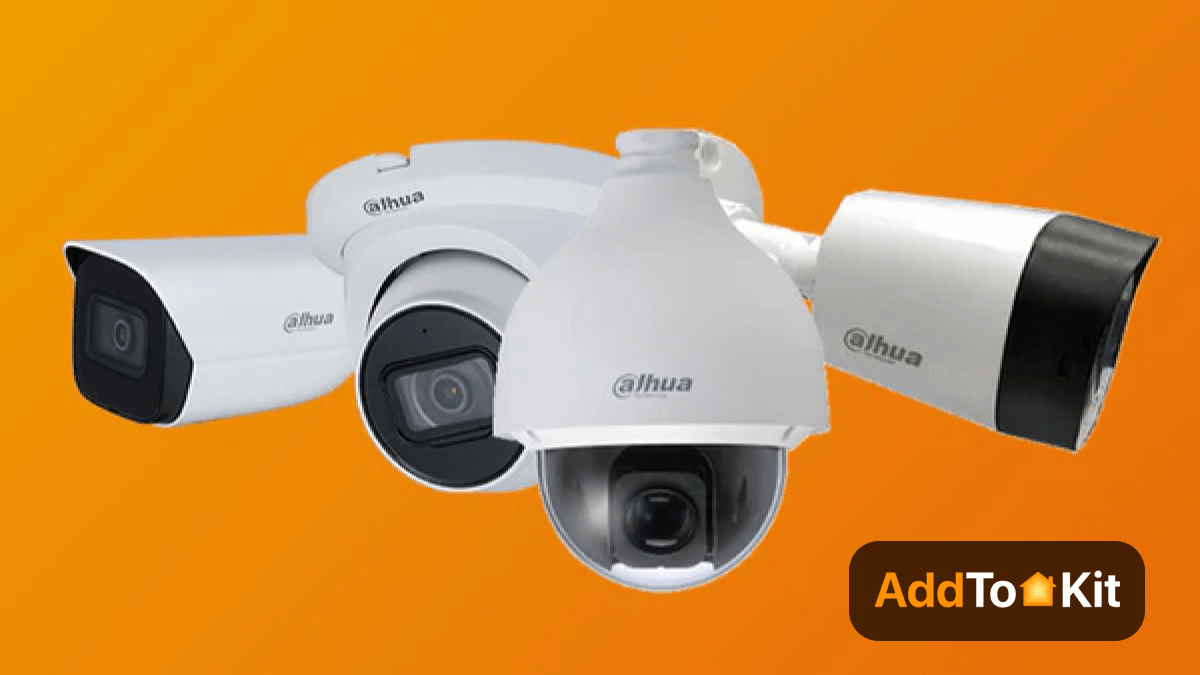
Dahua has officially introduced new security products. Dahua Security Series cameras are easy to install and operate and perform outstandingly. These cameras break through the limitations of distance.
- Dahua IP Security Cameras
- Dahua HD CCTV Cameras
- Dahua LPR Cameras
- Dahua PoE Cameras
- Dahua 180-degree Cameras
- Dahua 4K Security Cameras
Dahua Security Cameras by Styles
Dahua Bullet Series
- Offer reliable and robust surveillance solutions
- Outdoor Design
- Long Range
- High Resolution
- Varifocal Lenses
- Power over Ethernet (PoE)
- Remote Monitoring
- Integration with NVRs
Smart Features
- Video analytics
- Motion detection
- Tamper detection
- Other intelligent functions
Dahua Dome Series
- Provide versatile surveillance solutions for effective security monitoring
- High-Resolution Imaging
- Day/Night Functionality
- Wide Dynamic Range (WDR)
- Pan, Tilt, and Zoom (PTZ) control
- Vandal Resistance
- Audio Capabilities
- Weather Resistance
- H.265+ Compression
Dahua Eyeball Series
- Designed with a spherical shape
- Providing intelligent surveillance solutions
Dahua Fisheye Series
- Designed with fisheye lenses
- Wide Field of View
- 360-Degree Coverage
- High-Resolution Imaging
- PTZ Functionality
- Infrared Night Vision
- Vandal-Resistant and Weatherproof
- Remote Monitoring
- Analytics and Intelligent Features
Dahua PTZ Series
- High-Resolution Imaging
- Day/Night Functionality
- Powerful Optical Zoom
- Pan and Tilt Range
- Auto-Tracking
- Intelligent Analytics
- Auto-Flip Function
- Vandal Resistance
- Weather Resistance
Dahua Turret Series
- Offer versatile and flexible surveillance solutions
- Compact and adaptable design
- IR (Infrared) Night Vision
- Varifocal Lens
- Mobile App Support
- Wide Dynamic Range (WDR)
Smart Features
- Motion detection
- Face detection
- Line crossing detection
Now let's learn more about some of the Dahua camera products.
Dahua N82AL32 8MP IR H.265+ Outdoor Dome IP Security Camera
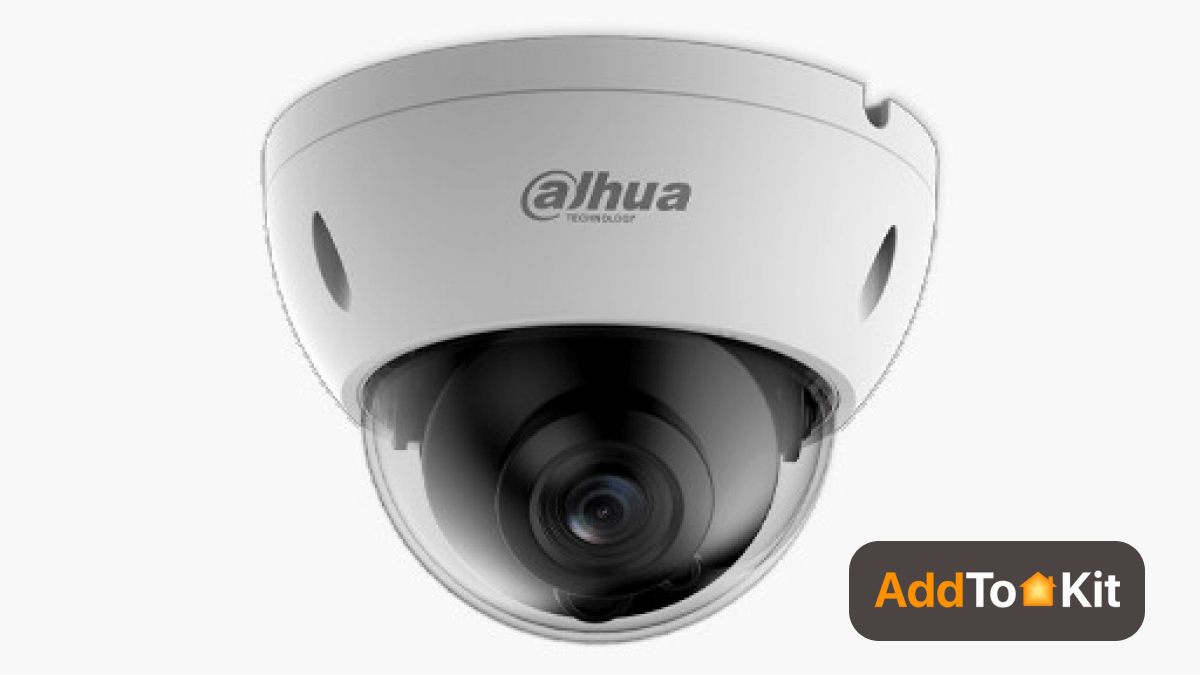
Dahua Outdoor dome cameras feature Smart H.265+ video compression. This camera provides an excellent choice for small and medium-sized applications at an affordable price.
- 1/2.7-in. 8 MP Progressive-scan CMOS Sensor
- Dual Stream Encoding
- Smart H. 265+ and Smart H.264+ Dual Codecs
- 8 MP (3840 x 2160) at 15 fps Maximum Resolution
- 2.8 mm Fixed Lens
- Starlight Technology for Low Light Sensitivity
- True WDR (120 dB) and Day/Night (ICR)
- Arctic Pro Series Camera – Operational down to –40°
- IP67 Ingress Protection and IK10 Vandal Resistance
Specification
| Analytics: | Intrusion Detection |
| Aperture: | F2.0 |
| Camera Style: | Dome |
| Color: | White |
| Compatible Integration (API): | ONVIF Profile SONVIF Profile GONVIF Profile TCGI ConformantP2PMilestoneGenetec |
| Compression: | Smart H.265 Plus Smart H.264 PlusH.265H.264H.264BMJPEG |
| Day/Night: | ICR (True Day/Night) |
| Detect (ft): | 245 |
| Dimensions: | 109.90 x 81.0 mm (4.33 x 3.19 in) |
| Durability: | Weatherproof Vandal Proof |
| Environmental: | Outdoor |
| Field of View (Horizontal): | 105 |
| IR LED Quantity: | 3 |
| Identify (ft): | 24 |
| Lens Mount: | M12 |
| Lens Size: | 2.8mm |
| Lens Type: | Fixed Lens |
| Max Power Consumption: | 6.2 Watts |
| Max. FPS and Resolution: | 15fps at 3840 x 2160 |
| Minimum Illumination (B/W): | M12 |
| Minimum Illumination (Color): | 0.009 lux at F2.0 |
| Mobile Apps: | iOS Android |
| Network Interface: | 1x RJ-45 10M/100M Base-TX Ethernet |
| Night Vision Range (ft): | 98 |
| Noise Reduction: | 3D DNR |
| Observe (ft): | 98 |
| Operating Humidity: | 0% to 95% RH (non-condensing) |
| Operating Temperature: | -40 °C to 60 °C (-40 °F to 140 °F) |
| Power Supply: | PoE (IEEE 802.3af)12 VDC |
| Product Series: | Dahua Lite Series |
| Protection Code: | IP67IK10 |
| Recognize (ft): | 48 |
| Remote Users: | Up to 20 |
| Resolution: | 8MP (4K) |
| SD Card Support: | SD Card Supported |
| Sensor Size: | 1/2.7" |
| Sensor Type: | CMOS |
| Special Technologies: | Dahua Starlight Technology |
| Storage Temperature: | -40 °C to 60 °C (-40 °F to 140 °F) |
| Technology: | Network (IP) |
| Wide Dynamic Range (WDR): | True WDR 120dB |
Dahua N42BD32 4MP H.265+ IR Starlight Arctic Bullet IP Security Camera
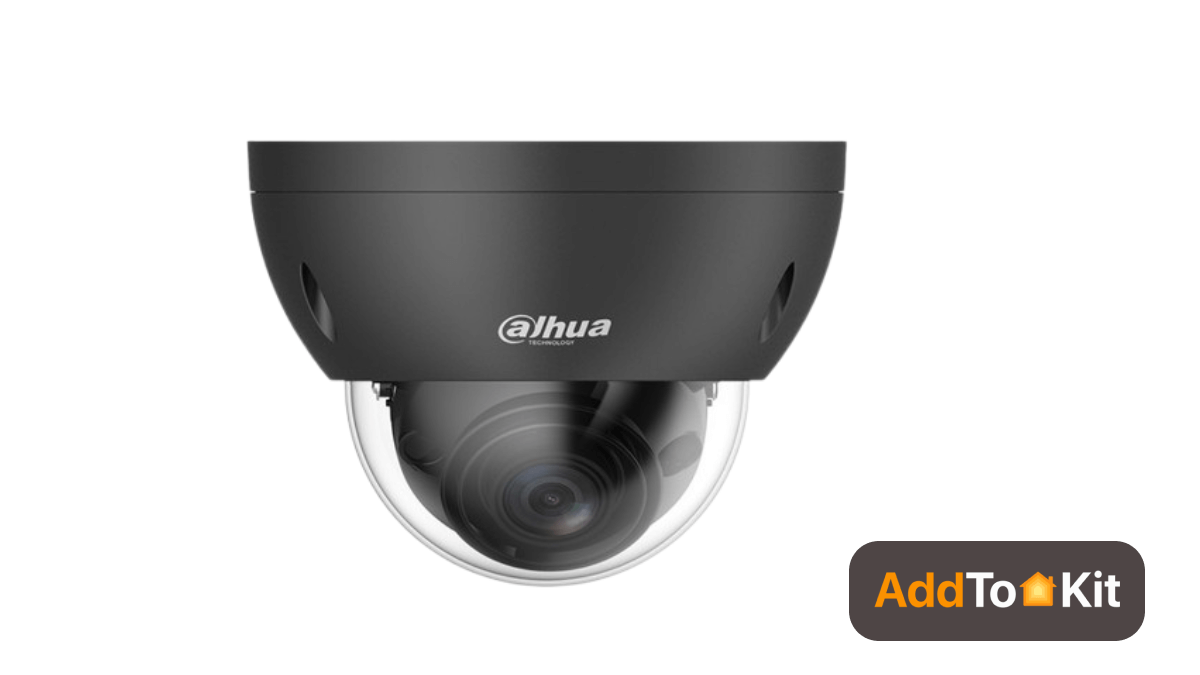
Dahua IP Security cameras offer high-definition video and cutting-edge technology. These cameras are easy to install and provide an excellent choice for small and medium-sized applications.
- 1/3-in. 4 MP Progressive-scan CMOS Sensor
- Dual Stream Encoding
- Smart H. 265+ and Smart H.264+ Dual Codecs
- 4 MP at 20 fps Maximum Resolution
- 2.8 mm Fixed Lens, Horizontal: 102.0°
- Starlight Technology for Low Light Sensitivity
- True WDR (120 dB) and Day/Night (ICR)
- Maximum IR LED Length 30 m (98.43ft) with Smart IR
- Intelligent Video System
Specification
| Analytics: | Intrusion Detection |
| Camera Style: | Bullet |
| Compression: | H.265 |
| Durability: | Weatherproof |
| Environmental: | Outdoor |
| Field of View (Horizontal): | 102 |
| Lens Size: | 2.8mm |
| Lens Type: | Fixed Lens |
| Night Vision Range (ft): | 98 |
| Product Series: | Dahua Lite Series Dahua Arctic Pro Series |
| Protection Code: | IP67 |
| Resolution: | 4MP |
| Sensor Type: | CMOS |
| Special Technologies: | Dahua Starlight Technology |
| Technology: | Network (IP) |
| Wide Dynamic Range (WDR): | True WDR 120dB |
Dahua Camera Google Home
While direct integration between Dahua cameras and Google Home is not natively supported, you can bridge your setup using a local platform like a Home Assistant HomeKit bridge.
Read also,
Editor’s Pick
I personally prefer AddtoHomeKit. I use AddtoHomeKit when I need to add a device that is not compatible with HomeKit because it is easy and takes very little time. Dahua cameras Apple HomeKit integration is a wonderful home automation method that literally makes smart home life even easier.
Dahua HomeKit FAQs
You can add Dahua cameras to the Apple Home app by using a third-party bridge solution. Options include AddToHomeKit, ATH Bridge, HOOBS, or Homebridge running a Dahua plugin. The bridge reads the local RTSP video stream from your camera. Then, you simply add the bridge or camera using Add Accessory in the Home app.
Not natively. Dahua cameras do not support Apple Home directly out of the box. You must add Dahua cameras to the Apple Home app with a bridge first. Apple has not officially stated how bridged cameras will appear on the HomeView smart display once connected.
Use homebridge-dahua-ultimate if you connect through a Dahua NVR system. For a single IP camera, select homebridge-dahua-camera-ultimate instead. Alternatively, homebridge-camera-ffmpeg paired with homebridge-dahua-alerts provides camera video streams and motion alerts. The main Dahua plugins carry the Verified by Homebridge badge.
Yes, you can add your Dahua NVR using the homebridge-dahua-ultimate plugin. Simply enter the NVR IP address, port, username, and password in settings. The plugin automatically finds each connected camera channel. Make sure to custom name channels on your NVR first, because channels with default names are disabled.
Yes, you can use HomeKit Secure Video when your bridge supports it, such as homebridge-dahua-ultimate or Scrypted. This feature requires a HomePod or Apple TV set up as a home hub. You also need an iCloud+ plan: 50GB for 1 camera, 200GB for 5, or 2TB for unlimited.
Yes, the homebridge-dahua-gate-release plugin adds a switch that sends an open-door command to a Dahua VTO2111D intercom. Other VTO models may work, but they are not tested. When using this feature, Siri may ask you to unlock your iPhone first before opening the door.
Your camera may not show up if settings are incorrect. First, enable RTSP and verify your camera login credentials in the bridge. Ensure your bridge and iPhone are on the same network with no VLAN isolation. Finally, set the stream codec to H.264, restart the bridge, and re-add the accessory.
You need a Dahua camera or NVR on your local network with RTSP enabled. You also need admin account login details, the right Dahua plugin, and a bridge. Bridges include ATH Bridge, HOOBS, or an always-on computer running Homebridge. A HomePod or Apple TV acts as a home hub for automations.
Yes, you can continue using the DMSS app without interruption. The bridge plugins connect locally and do not replace native Dahua applications. You still use DMSS or your NVR for recording schedules, detection rules, and playback. Adding Apple Home gives you Siri voice control, live view, and automations.