How to add any ADT devices to Apple HomeKit


ADT does not natively support Apple HomeKit. ADT Pulse customers can connect to HomeKit using third-party bridges like Homebridge, HOOBS, or ATH Bridge. This guide covers which ADT systems are compatible, which bridge suits your setup, and step-by-step instructions for each method.
Integration Methods
- AddToHomeKit: AddtoHomeKit is a most recommended solution that has easy procedures that you can use to add any smart home device, including ADT, to Apple HomeKit
- Homebridge/HOOBS: It requires a server such as Raspberry Pi to run plugins that connect ADT devices to HomeKit.
- ATH Bridge: It is a plug and play device designed to bridge ADT devices to Apple Home.
- Blue by ADT (Discontinued): While earlier Blue cameras offered HomeKit support, the main, modern ADT Command panels generally require third-party bridging, as they are often locked to proprietary platforms.
- Matter Support: ADT is part of the Connectivity Standards Alliance (CSA) working on Matter, aiming for future native interoperability.
How to add ADT Devices to HomeKit
Is ADT compatible with Apple Home? Since ADT does not work with HomeKit by default, the only way to integrate these two systems is through a bridge. Several different bridges can be used as solutions to do the HomeKit-ADT integration.
There are two major bridging options available: software-based bridges and hardware-based bridges (hubs). Out of many bridges, you are the one who has to decide what is the best for you. But here are some great bridges that we suggest,
Let’s go through them one by one for proper explanation and instructions.
AddtoHomeKit
ADT AddtoHomeKit is a solution that has guidelines that you can use to add any smart home device, including ADT, to Apple HomeKit. It helps you to add any type of a smart home device to HomeKit. We can say that this is similar to a tour guide where it takes you to the destinations without having to struggle.
You have to visit the AddtoHomeKit official website to get started! (Yes, you don't need to download any app!)
Homebridge
Homebridge is a software-based bridge that connects ADT and HomeKit. Since it is software, you will always need your PC to add and manage the smart home devices through Apple HomeKit. This is also user friendly and you can get familiar to the setup quickly. It allows managing plugins, accessories and configurations within the same UI.
ATH Bridge
This plug-and-play hub acts as a bridge that allows the addition of non-compatible devices such as ADT, to Apple HomeKit. Add To Homekit Bridge is one of the most advanced smart home hub solutions that could be easily controlled, monitored and automated within a single system. It also works seamlessly with any virtual assistant.
HOOBS
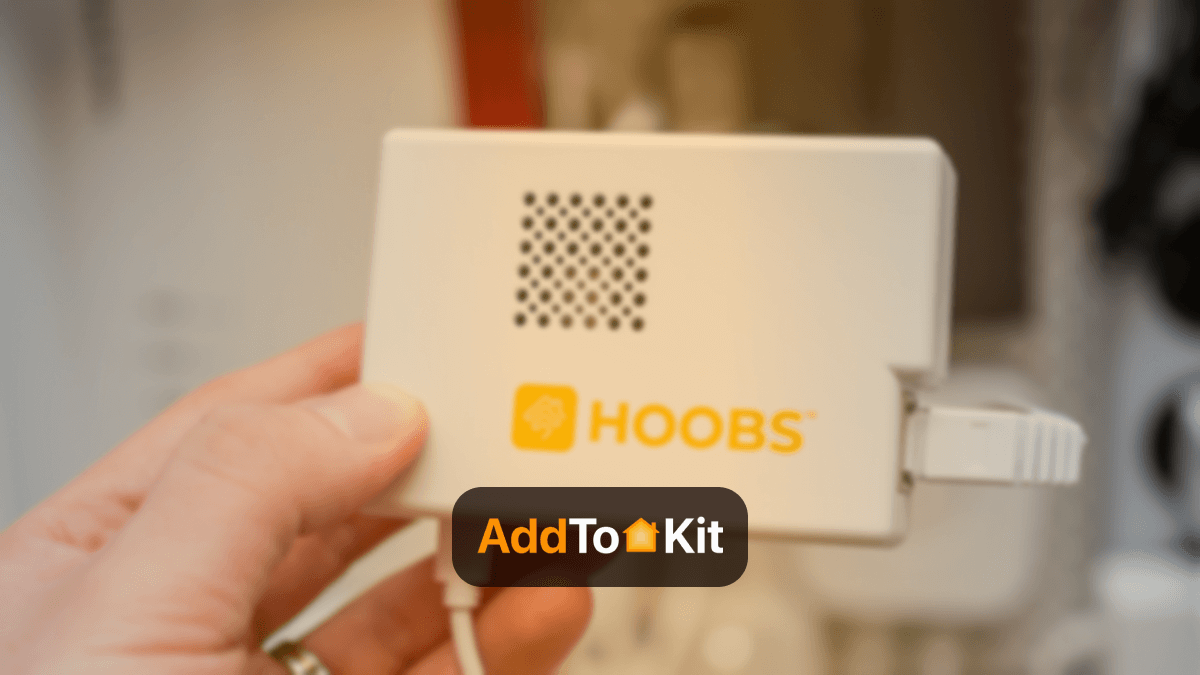
If you are looking for a hardware-based bridge, this is one of the best suggestions that we can make. It acts like a hub where you can easily integrate ADT HomeKit.
HOOBS hardly takes few minutes to set the whole thing up as there is no need to install the server. This is a great solution if you are looking for a quick fix for your ADT and HomeKit integration.
How to Add ADT to HomeKit using AddtoHomeKit
ADT is recognized as one of the best smart home security systems. Using AddtoHomeKit to add ADT devices to HomeKit is easy and can be done by following a few steps.
Here’s what you should do,
- Visit the AddtoHomeKit official website
- Scroll down to find out the brand of your smart home device.
- Click on the ‘add to home’ button next to the brand name.
- There will be several methods displayed, and you can select the one that you prefer.
- Then, it will suggest available software or hardware bridges that can be chosen to connect ADT and HomeKit.
- Once you select one, it will give you clear step-by-step instructions that you can use to connect ADT with Apple HomeKit.
How to Add ADT to HomeKit using Homebridge
As mentioned before, you always need the help of the PC if you are using Homebridge as a software-based bridge. And don’t forget that you can get support from the AddtoHomeKit to add an ADT device to Apple HomeKit.
Here’s how you can get the help of AddtoHomeKit to perform the ADT-HomeKit integration,
- Visit the AddtoHomeKit official website and select the OS of your PC.
- AddtoHomeKit will find a suitable Homebridge plugin for the ADT device.
- Now, a stepwise guide will pop up. Follow it to complete the installation of the Homebridge plugin.
- Do the configuration of the plugin as per the instructions.
- Now, open the Apple Home and add the ADT device you want there.
Adding ADT to HomeKit using HOOBS
HOOBS is a hardware-based bridge that works flawlessly with HomeKit. Three significant steps should be followed when integrating ADT with HomeKit using HOOBS.
-
Setting up HOOBS device
- Plug the HOOBS device into a power supply and turn it on. A red LED will blink once it is on.
- Connect HOOBS to the internet through the ethernet cable or Wi-Fi. The red LED will turn green.
- Download the HOOBS application from the website.
- Go into the application and add the HOOBS device to the app via ‘network scanner’.
- The device will appear on the screen. Click on it and a page ‘setup new device’ will appear.
- Fill in the information and click the Finish button.
- Once the device is added, create a HOOBS account and log in.
-
Installing and configuring the plugin
- Go to the plugins tab in HOOBS app.
- Look for the ADT Pulse plugin in the search option.
- Click on install and let it be done.
- Then tap on the configuration button on the plugin page found under the plugin name.
- On this configuration page, use the sample code below and customize it accordingly.
- Once the code is configured, restart the HOOBS device to add the ADT device.
{
"platforms": [
{
"platform": "ADTPulse",
"name": "ADT Pulse",
"username": "email@email.com",
"password": "1234567890",
"fingerprint": "abcdef1234567890=",
"overrideSensors": [
{
"name": "Sample Sensor 1",
"type": "sensor,doorWindow"
},
{
"name": "...",
"type": "..."
}
],
"country": "us",
"logLevel": 30,
"logActivity": true,
"removeObsoleteZones": true,
"pausePlugin": false,
"resetAll": false
},
{
"platform": "...",
"name": "..."
}
]
}
-
Adding ADT to HomeKit
- Open the Apple Home application and click on the ‘+’ icon.
- Select the Add Accessory option and a scanning page will pop up.
- Scan the QR code on the HOOBS plugin page and pair the ADT and HomeKit.
- Follow the prompts and add the device to the desired location with a name.
- Press Done to complete the ADT and Apple HomeKit integration.
You can also integrate add any devices to HomeKit, Eufy HomeKit, Roomba HomeKit, Meross HomeKit using HOOBS.
How to add ADT to HomeKit using ATH Bridge
Ath Bridge offers a simple to use set of steps that can be followed to connect ADT and HomeKit:
- Remove the pre-flashed SD card from the packaging.
- Place it inside the server.
- Connect the server to the WIFI router using a cable.
- Turn the server on.
- Use the router to find the IP address of the server.
- Enter the IP address and port 8581 on the machine as:
http://192.168.4.12:8581. - Enter the login details.
- Select the ADT Pulse plugin and download it.
- Do the configuration settings after logging into the server.
What Can You Actually Control Through HomeKit with ADT?
Direct answer: Through a Homebridge-based bridge, ADT Pulse sensors and the security panel (arm/disarm) appear in Apple Home. ADT cameras do not — they are locked to ADT's proprietary platform and do not support HomeKit Secure Video (HSV).
| Device / Feature | Works via HomeKit Bridge? |
|---|---|
| Door and window sensors | ✅ Yes |
| Motion sensors | ✅ Yes |
| Smoke detectors | ✅ Yes |
| Carbon monoxide detectors | ✅ Yes |
| Glass break detectors | ✅ Yes |
| Security panel (arm / disarm) | ✅ Yes — Away, Home, Night modes |
| Siri voice commands | ✅ Yes |
| HomeKit automations and scenes | ✅ Yes |
| ADT cameras (live view in Home app) | ❌ No — platform-locked |
| HomeKit Secure Video (HSV) | ❌ No — requires native HomeKit camera |
| Remote access when away from home | ✅ Yes — requires Apple Home Hub |
What are the Benefits of Connecting ADT to Apple HomeKit
Once connected via a bridge, ADT Pulse users gain:
- Unified sensor monitoring — All door/window contacts, motion sensors, smoke detectors, and CO detectors appear in the Apple Home app alongside other HomeKit devices
- Siri voice control — Arm and disarm your ADT system hands-free. Example commands:
- "Hey Siri, set security to Away mode"
- "Hey Siri, activate no one home mode"
- "Hey Siri, is the front door open?"
- HomeKit automations — Trigger ADT arm states based on location, time, or other device activity. For example: automatically arm Away mode when the last iPhone leaves home using geofencing
- Cross-device control — Manage your security system from iPhone, iPad, Apple Watch, or Mac
Plugin limitations of ADT-HomeKit
Not all the ADT smart home devices are compatible with HomeKit plugins and workarounds. For your convenience, here’s a list of the ADT devices that can be integrated with HomeKit using the above methods,
- ADT door and window sensors
- ADT security panel
- ADT motion sensors
- ADT fire detector
- ADT glass break detector
- ADT Carbon Monoxide detector
Troubleshooting ADT HomeKit Connection Issues
Plugin disconnects after an ADT Pulse portal update
ADT periodically updates the Pulse web portal, which can break the plugin's API connection. Check the homebridge-adt-pulse GitHub releases page for updated plugin versions — patches are typically released within days of a portal change.
Login failing / fingerprint error
ADT introduced two-factor authentication, making a device fingerprint mandatory for login. From homebridge-adt-pulse v3.4.0+, the setup wizard retrieves the fingerprint automatically. If you see a fingerprint error, update the plugin first, then re-run the setup wizard.
ADT accessory not appearing in Apple Home
Wait 60–90 seconds after restarting Homebridge or HOOBS before opening Apple Home. If the accessory still doesn't appear, remove it from Home and re-add it using the HomeKit setup code on the plugin page.
Siri arm/disarm commands not working
Confirm your Home Hub (HomePod, Apple TV, or iPad) is online. Siri commands to HomeKit security systems route through the Home Hub — if it is offline or on a different Apple ID, commands will fail.
HOOBS stuck on red LED
A solid red LED after initial setup indicates a network connectivity failure. Check that the ethernet cable is fully seated, or retry Wi-Fi configuration from the HOOBS app. A blinking red LED on first boot is normal and resolves once the OS finishes loading.
Future of ADT with Matter
ADT is making its smart home system work better with other devices using the Matter standard.
- You can connect ADT security devices (locks, cameras, sensors) with other smart home products easily.
- The ADT+ app acts as the main control hub for everything.
- ADT works closely with Google, so Google Nest devices fit smoothly into the system.
- Older Z-Wave devices can still be used alongside newer Matter devices.
Recent update:
- ADT settled a legal issue with the U.S. government and improved support for military customers.
How to use ADT features:
- Use the ADT+ app to control all smart devices.
- Use the ADT Control app for alerts and remote access.
- Use the ADT Command panel for in-home control.
- You can use Google Assistant for voice commands.
- DIY options let you set up a system quickly yourself.
FAQs about ADT HomeKit
Go to your ADT panel and press the system/menu button. Locate the time and date setting option. Correct the time and date and then exit the menu.
Not all the time. The ADT devices can work without the internet. But remote control is not possible without Wi-Fi.
No. But it can work with the support of third-party bridges.
Currently, ADT Blue is not compatible with HomeKit. However, the company is working towards upgrading them to make them connect and work directly.