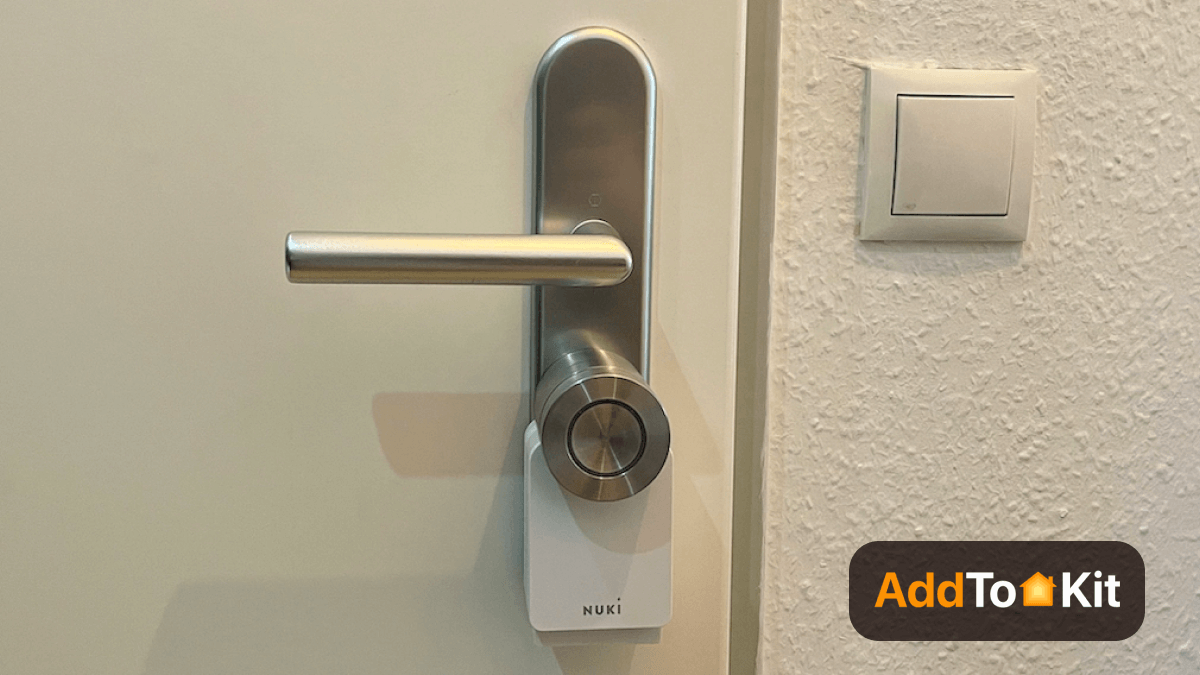
Did you know that most of the new Nuki devices are compatible with HomeKit? Thanks to Apple HomeKit, the Nuki Smart Lock can now also be controlled with Siri.
💡
Quick Answer: Nuki’s Apple Home integration depends on the lock model. Nuki Smart Lock 2.0 and 3.0 models use native HomeKit over Bluetooth, while 4th-generation Nuki locks, Go, Pro, and Ultra use Matter over Thread. Nuki also supports Apple Home Key with compatible Matter-enabled locks and the Nuki Keypad 2 NFC.
Can I Add Nuki Devices to Apple HomeKit?
Yes. Nuki smart locks can work with Apple Home, but the connection method depends on the model. Nuki Smart Lock 2.0 and 3.0 models use HomeKit over Bluetooth, while 4th-generation Smart Locks, Nuki Go, Pro, and Ultra use Matter over Thread. The Nuki Opener does not have native HomeKit support.
AddToHomeKit [Recommended Solution]
💡
What it the Easiest Way to Add Nuki to Apple Home? If you prefer a guided software-based option, AddToHomeKit provides a simpler way to connect supported Nuki devices to Apple Home.
It removes the need to manually figure out plugins, compatibility, or setup paths by guiding you step-by-step based on your exact device.
Why Choose AddToHomeKit - No technical knowledge required - Step-by-step guided setup - Works across multiple ecosystems - Reduces setup errors and confusion
AddToHomeKit provides a guided way to connect supported Nuki devices to Apple Home. It can be useful if you prefer step-by-step instructions instead of manually configuring a bridge. If your Nuki lock already supports HomeKit or Matter, however, you can use its native Apple Home integration without an additional bridge solution.
Compared to Homebridge or HOOBS, AddToHomeKit removes the complexity and gives a clearer, faster path to integration.
Features
Provides user-friendly Interface
Supports a wide range of smart home devices
Offers step-by-step instructions and troubleshooting tips
Tip: Nuki says that the Nuki Smart Lock 3.0 is compatible with Apple HomeKit!
Step-By-Step Guide to add Nuki Devices to HomeKit using AddToHomeKit
Go to the official AddtoHomeKit website.
Select the Nuki ecosystem and proceed to the next page.
ATH Bridge is a pre-flashed Homebridge server designed to connect supported smart home devices to Apple Home. For Nuki users, it provides a dedicated hardware option when a bridge-based integration is needed, without requiring you to build and maintain your own Homebridge server.
How Do You Use ATH Bridge for Nuki HomeKit Integration?
ATH Bridge runs Homebridge on dedicated hardware, allowing supported devices to be exposed to Apple Home through compatible plugins.
It can be useful if your Nuki setup requires a bridge and you prefer a hardware-based solution instead of running Homebridge on your own computer or Raspberry Pi.
If your Nuki lock already supports HomeKit or Matter natively, use the native Apple Home integration first.
Features
Runs Homebridge on dedicated hardware
Supports compatible Homebridge plugins for smart home integrations
Provides a hardware-based alternative to running Homebridge on your own computer
Connected accessories can be controlled through the Apple Home app when supported by the chosen integration
Step-By-Step Guide to add Nuki Devices to HomeKit using AddToHomeKit Bridge
Purchase and install the ATH Bridge
Purchase the ATH Bridge and connect it to your home network.
Configure the Bridge
Follow the setup guide to configure the ATH Bridge with your home network.
Integrate with HomeKit
Use the ATH Bridge’s integration features to connect with HomeKit and add the bridge to the home app and connect it with your Nuki devices.
Create Automations
Set up automation rules and scenes in the home app to control your Nuki devices.
Homebridge Solution
HomeBridge is an open-source platform that can expose supported non-HomeKit devices to Apple Home through plugins. For Nuki, it is mainly useful when you need a bridge-based integration, such as for devices without native Apple Home support. It requires more manual setup than a guided or dedicated hardware solution.
💡
Best for users who are comfortable installing plugins, configuring integrations, and troubleshooting Homebridge.
Features
Open-source and highly customizable
Uses plugins to connect supported devices to Apple Home
Can run on a Raspberry Pi, computer, or other supported hardware
Requires manual plugin setup and maintenance
How to Connect Nuki to Apple Home Using Homebridge
Install Homebridge: Set up Homebridge on a supported computer, Raspberry Pi, or other compatible device.
Open the Homebridge UI: Go to the Plugins section in the Homebridge dashboard.
Install a maintained Nuki plugin: Search for a currently maintained plugin that supports your Nuki setup. One current option is homebridge-nb. Check the plugin documentation and supported Nuki devices before installing it.
Configure the Nuki integration: Follow the plugin developer’s current setup instructions. Configuration depends on the plugin and Nuki hardware you use, so do not use outdated email-and-password configuration examples.
Restart Homebridge: Restart Homebridge after configuration and check the logs for plugin or connection errors.
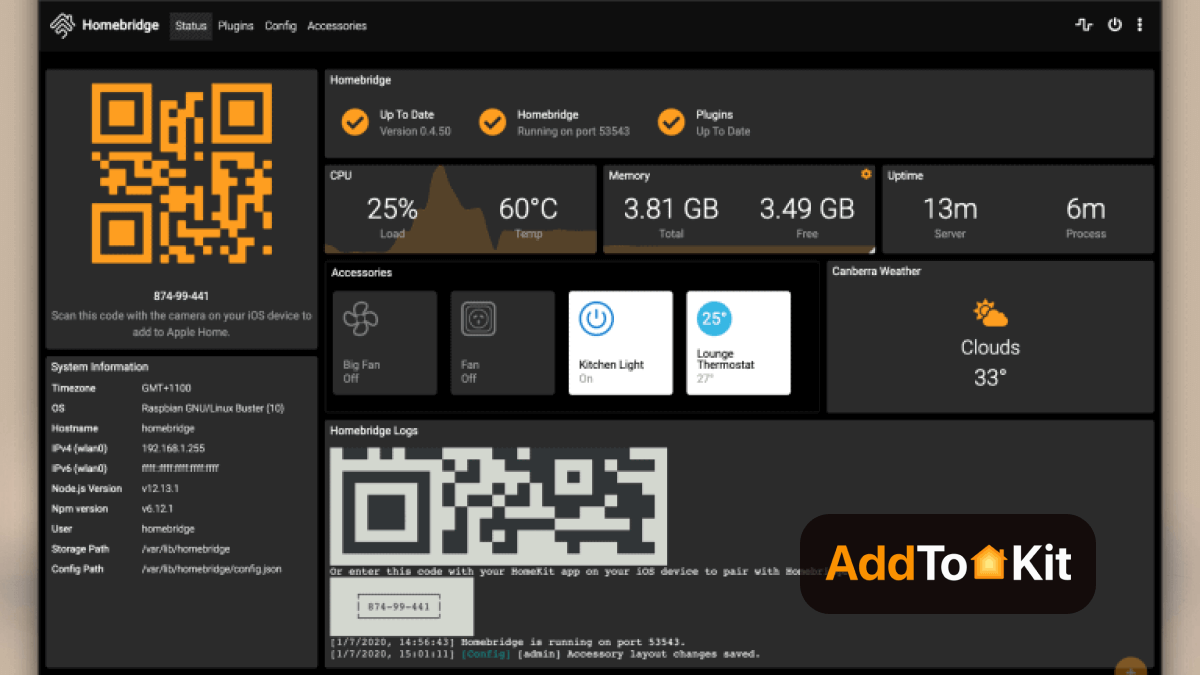
Add Homebridge to Apple Home: Open the Apple Home app, select Add Accessory, and scan the Homebridge QR code shown in the Homebridge UI.
Check your Nuki device: Once the integration is working, the supported Nuki accessory should appear in Apple Home.
homebridge-screenshot
Troubleshooting Tips: Nuki Not Discoverable by HomeBridge
Troubleshooting: Nuki Not Showing in Homebridge
Check Homebridge: Make sure Homebridge is running correctly and review the logs for errors.
Check the Nuki plugin: Confirm that the plugin is installed, enabled, and supports your Nuki device or setup.
Check the plugin configuration: Follow the current configuration instructions provided by the plugin developer.
Check your network: Make sure the devices required by your chosen Nuki integration can communicate correctly on your home network.
Restart Homebridge: Restart Homebridge after making configuration changes and check the logs again.
Check for updates: Keep Homebridge and the Nuki plugin updated to supported versions.
HOOBS Solution
The most often used way to connect incompatible smart gadgets to Apple HomeKit is HOOBS. HOOBS (HomeBridge Out of the Box) is basically an update of HomeBridge. HOOBS was also a great solution to Apple HomeKit Nuki integration.
💡
Easier than Homebridge, but still requires setup and ongoing maintenance.
Features
Seamlessly integrates with Apple Home
Easy setup
Affordable solution
Best alternative to Homebridge
Plug-and-play solution
Step-By-Step Guide to add Nuki Devices to HomeKit using HOOBS
Install HOOBS on a Raspberry Pi or any other suitable hardware.
Visit the HOOBS dashboard.
Go to the Home App.
Select "Add Accessory".
Select the HOOBS server.
Scan the QR code displayed on-screen.
Finally, follow the on-screen instructions.
Which Nuki Smart Locks Work with Apple Home?
Nuki Model
Apple Home Integration
Connection
Nuki Smart Lock 2.0
Native HomeKit
Bluetooth
Nuki Smart Lock 3.0 / 3.0 Pro
Native HomeKit
Bluetooth
Nuki Smart Lock 4th Gen / 4th Gen Pro
Matter
Thread
Nuki Smart Lock Go
Matter
Thread
Nuki Smart Lock Pro
Matter
Thread
Nuki Smart Lock Ultra
Matter
Thread
Nuki Opener
No native HomeKit support
Bridge solution required
Connect Nuki to Apple Home with Native HomeKit
Nuki Smart Lock 2.0 and 3.0 models can connect directly to Apple Home using HomeKit over Bluetooth. Once paired, you can control supported lock functions through the Apple Home app and Siri without using a Nuki Bridge for the HomeKit connection.
Why connect Nuki with HomeKit?
Operate Nuki via voice commands with Siri
Integrate Nuki into HomeKit automations and scenes
Get notifications on Apple devices (iPhones, Apple Watch, etc.)
Other Apple users can operate the devices.
Connect Nuki with other smart devices
Step-by-step guide to connect Nuki smart lock Apple HomeKit
Open the Apple Home app: Tap + and select Add Accessory.
Scan the HomeKit code: Scan the HomeKit setup code for your Nuki Smart Lock. On supported models, the code can be found on the lock or in the supplied documentation.
Follow the setup instructions: Complete the pairing process in the Apple Home app.
Assign the lock to a room: Choose the correct room and give the lock a recognizable name.
Test the connection: Check that the lock responds correctly in Apple Home and with Siri.
Troubleshooting Tips: Nuki Not Discoverable by HomeKit
Ensure HomeKit Compatibility: If you are using the Nuki Smart Lock 3.0 Pro, it should natively support HomeKit. The standard Nuki 3.0 requires a Nuki Bridge for integration.
Reset HomeKit Pairing: In the Nuki app, go to Setting > HomeKit, remove the existing pairing and re-add it.
Check HomeKit Code: When pairing, ensure you are using the correct HomeKit QR code found in the Nuki app under Settings > HomeKit.
Verify Bluetooth and Wi-Fi: The Nuki Smart Lock needs a stable Bluetooth connection and must be on the same Wi-Fi network as your HomeKit hub (Apple TV, HomePod or iPad).
Restart Devices Restart your Nuki Smart Lock, HomeKit hub and iPhone to refresh connections.
Update Firmware & iOS: Mke sure your Nuki device firmware and iOS are up to date.
Check Home App & iCloud: Ensure your iCloud account is signed in and Keychain is enabled under iCloud settings.
Factory Reset Nuki: As a last resort, perform a factory reset on the Nuki Smart Lock and set it up again from scratch.
Disclaimer: Taking part in third party integrations can be risky and dangerous.
Connect Nuki with Alexa
To integrate Nuki with Alexa, you can follow the steps below.
Go to ‘Settings’
Click on ‘Functions & Integrations’
Choose ‘Activate Nuki Web’
Also select ‘Amazon Alexa’ under ‘Functions & Integrations’
Now click on ‘Connect’
After following these steps, you can now operate the Nuki door lock with Alexa.
Nuki Matter over Thread: How It Works with Apple Home
Nuki’s newer smart locks use Matter over Thread for Apple Home integration instead of the Bluetooth HomeKit connection used by older generations. This applies to Nuki Smart Lock 4th Gen and 4th Gen Pro, as well as Nuki Go, Pro, and Ultra.
To connect one of these models to Apple Home, you need a Matter-compatible Apple home hub that supports Thread. In the Nuki app, go to Features & Configuration → Smart Home → Matter and follow the instructions to activate Matter and add the lock to your Apple Home.
How to Use Matter with Nuki
Check your Apple home hub: Make sure you have a Matter-compatible Apple home hub that supports Thread.
Open the Nuki app: Select your Nuki Smart Lock and go to Features & Configuration.
Open Matter settings: Select Smart Home and then Matter.
Activate Matter: Follow the instructions in the Nuki app to enable Matter for your lock.
Add the lock to Apple Home: Follow the pairing instructions to connect the Nuki Smart Lock to your Apple Home.
Test the lock: Confirm that the lock appears in Apple Home and responds correctly.
Does Nuki Support Apple Home Key?
Nuki supports Apple Home Key with compatible Matter-enabled Nuki Smart Locks when used with the Nuki Keypad 2 NFC. This lets you unlock the door using a compatible iPhone or Apple Watch.
To use Apple Home Key, you need a Matter-capable Nuki Smart Lock, the Nuki Keypad 2 NFC, a compatible Apple home hub with Matter support, and a supported iPhone or Apple Watch. Set up the lock with Matter in Apple Home and complete the Home Key setup using the compatible Nuki hardware.
Does Nuki Opener Work with Apple HomeKit?
Nuki Opener does not have native Apple HomeKit or Matter support. If you want to control Nuki Opener through Apple Home, you need a bridge-based integration such as Homebridge with a compatible Nuki plugin. Compatibility and available controls depend on the plugin and your Nuki setup.
Nuki Smart Lock Pro (4th generation)
Nuki Smart Lock Pro (4th generation)
With Nuki Smart Lock Pro, now you can use your smartphone as a key. You can grant access to guests at specific times with the Nuki app. Another surprise! Now you can connect the Nuki smart door lock to your smart home via Matter.
Lock or unlock your door via your smartphone
Automatic unlocking when you’re nearby
With built-in Wi-Fi for remote access
Nuki Power Pack included
Also available in white
Complete control over who can open your door
Pros and Cons
Pros
Easy and quick to install
Matter compatible
Can control the lock remotely
Can automatically opens when you're within a certain range
Cons
The battery drains quickly if you use the lock often
Which Nuki HomeKit Method Should You Choose?
Use Native Apple Home Integration if:
Your Nuki lock already supports HomeKit or Matter
You want the simplest setup
Use AddtoHomeKit if:
You want the easiest overall method
You want guided setup
You want to avoid technical work
Use ATH Bridge if:
You want a plug-and-play hardware solution
You don't want to configure software
Use Homebridge or HOOBS if:
You are comfortable with technical setup
You want full control and customization
Editor’s Pick
For Nuki Smart Lock 2.0 and 3.0 models, the native HomeKit connection is the simplest place to start. Newer Nuki locks, including 4th-generation models, Go, Pro, and Ultra, use Matter over Thread for Apple Home integration. If your Nuki device does not have native Apple Home support, a bridge-based option such as AddToHomeKit, ATH Bridge, Homebridge, or HOOBS may be useful.
FAQs
Yes. Nuki Smart Lock 2.0 and 3.0 models support native HomeKit over Bluetooth. Newer models, including 4th-generation Nuki Smart Locks, Go, Pro, and Ultra, connect to Apple Home using Matter over Thread. The correct setup method therefore depends on the Nuki model you use.
No. Nuki Smart Lock 2.0 and 3.0 models can connect to Apple Home using native HomeKit over Bluetooth without requiring a Nuki Bridge for the HomeKit connection. Newer Matter-compatible Nuki locks use Matter over Thread instead. Bridge-based solutions are mainly useful when native Apple Home support is not available.
Nuki Smart Lock 4th Gen and 4th Gen Pro, as well as Nuki Go, Pro, and Ultra, use Matter over Thread for Apple Home integration. You need a compatible Apple home hub that supports Matter over Thread and must activate Matter through the Nuki app before adding the lock to Apple Home.
The setup method depends on your Nuki model. Smart Lock 2.0 and 3.0 models can be paired through Apple Home using their HomeKit setup code. For Matter-compatible models, open the Nuki app, go to Features & Configuration, select Smart Home and Matter, then follow the pairing instructions.
Yes. Apple Home Key is available with compatible Matter-enabled Nuki Smart Locks when used with the Nuki Keypad 2 NFC. You also need a compatible Apple home hub with Matter support and a supported iPhone or Apple Watch. Once configured, Home Key can be used to unlock the door.
Nuki Opener does not have native Apple HomeKit or Matter support. If you want to bring Nuki Opener into Apple Home, you need a bridge-based integration such as Homebridge with a compatible Nuki plugin. Available controls and compatibility depend on the plugin and the Nuki setup you use.
For Nuki models that use native HomeKit, the HomeKit setup code is provided with the lock and can also be found on supported models themselves. Make sure you use the code supplied for your specific Nuki lock when pairing it with the Apple Home app.
No, not when your Nuki lock already supports HomeKit or Matter natively. Homebridge is mainly useful for Nuki devices or setups that need a bridge-based integration, such as Nuki Opener. If you use Homebridge, choose a currently maintained Nuki plugin and follow its current configuration instructions.
With over 2 years of experience in smart home tech and HomeKit integration, I help users connect incompatible devices to HomeKit, sharing best tips and solutions for seamless integration.