How to Add UniFi Protect Cameras to HomeKit 2026

Do you also dream of a UniFi HomeKit integration? If so, you came to the right place. As a huge UniFi fan, the only issue I had was that I couldn’t create a UniFi Protect to Apple HomeKit integration, I got into work and tried to see if there are any good solutions and that is when I stumbled upon a few third-party solutions.
Below are the some of the best solutions I tried to out to create a UniFi Home Kit integration:
AddtoHomeKit [Recommended Solution]
ATH Bridge [Affordable Solution]
UniFi devices do not natively support Apple HomeKit. However, you can seamlessly integrate your UniFi Protect cameras, doorbells, and network gear into the Apple Home app using local bridge servers and proper network configuration.
This guide covers two distinct paths:
- Integrating UniFi Protect Cameras into HomeKit — Add your cameras, chimes, and doorbells with full HomeKit Secure Video (HKSV) support
- Optimizing Your UniFi Network for HomeKit — Configure mDNS, IGMP Snooping, and network isolation so your HomeKit hub and Matter devices work reliably
Whether you want video feeds in HomeKit or need to fix "No Response" errors on your existing HomeKit accessories, this guide covers both scenarios with step-by-step setup and troubleshooting.
AddtoHomeKit [Recommended Solution]
UniFi AddtoHomeKit is an amazing tool that allows you to add many devices to Apple HomeKit. I loved this solution particularly because of how easy and effortless it is. It is not time-consuming, but you have some coding knowledge to do. Just to give a small explanation it provides multiple plugins for a huge variety of devices. These plugins and step-by-step guides help you to add UniFi with Apple Home Kit or even a UniFi Protect to Apple HomeKit integration.
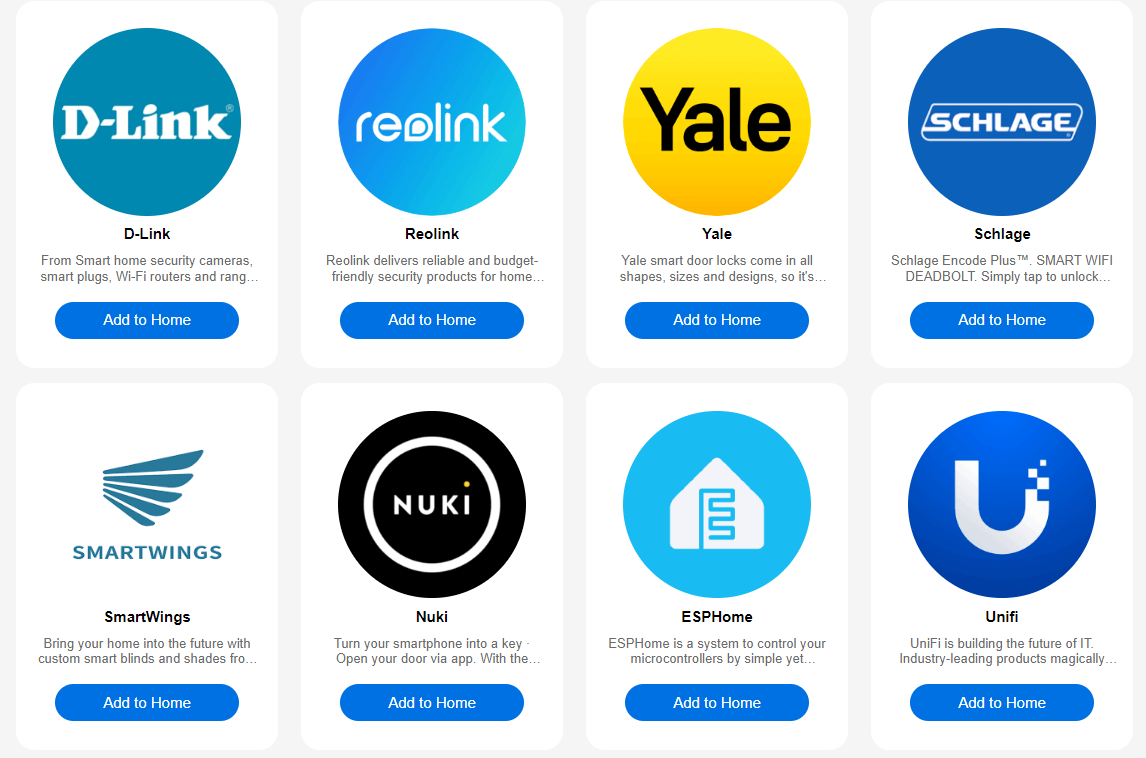
Step-by-Step Guide to Operate AddtoHomeKit
- Visit the AddtoHomeKit Website
- Select the UniFi Ecosystem
- Choose your preferred Solution
- Choose your preferred Operating System
- Choose your preferred Plugin
- Install the plugin
- Follow on-screen instructions
ATH Bridge [Affordable Solution]
The ATH Bridge is a small plug and play device that allows you to add any HomeKit incompatible devices to Apple HomeKit. It is basically a pre-flashed HomeBridge server. It is a very convenient solution for creating an Ubiquiti UniFi HomeKit. It is a specially compiled server designed for effortless UniFi Camera HomeKit integrations. But you need a little coding knowledge to work with this product.
HOOBS Solution
HOOBS which stands for HomeBridge Out of the Box. It is an updated version of HomeBridge. I would say, comparatively to HomeBridge is a user-friendlier version. You need a little coding knowledge to work with this solution. Also, you can add UniFi camera Apple HomeKit using HOOBS Solution.
Step-by-Step Guide to Operate HOOBS
- Prepare your Network:
- Visit the HOOBS website:
- Boot up HOOBS:
- Access HOOBS Dashboard:
- Access HOOBS Configuration:
- Install UniFi Plugin:
- Configure the UniFi Plugin.
- Add UniFi Devices to HomeKit.
Make sure you have a stable WiFi network available, both your iOS device and HOOBS to the same Wi-Fi network.
You must flash the HOOBS image onto a microSD card using appropriate software (eg: BalenaEtcher or Raspberry Pi Image). Now, insert the microSD into the Raspberry Pi. Acquire and install HOOBS.
After the installation of HOOBS. Connect your Raspberry Pi to power and wait for HOOBS to boot up. HOOBS will appear as a Wi-Fi network namely “hoobs.local”, connect your device to this network.
Visit http://hoobs.local. And follow the on-screen instructions to complete the initial setup of HOOBS. You would most likely need to set up your admin account and connect HOOBS to your Wi-Fi network.
After completing the setup, you will be directed to the HOOBS dashboard where you can manage plugins and configure devices.
In the HOOBS dashboard, click on “Plugins” in the sidebar. Search for “UniFi” in the Plugins Marketplace. Click “Install”.

As you can see, you can basically add any smart device to Apple HomeKit with this solution. Integrations such as Nuki HomeKit or even a Eero HomeKit are possible!
HomeBridge
HomeBridge is an amazing tool that bridges the gap for devices that are not natively supported by HomeKit. While UniFi lacks direct HomeKit support, you can connect them through HomeBridge plugins. It is an open-source platform that lets you control non-HomeKit devices through the Apple Home app.
Step-by-Step Guide to Operate HomeBridge
- Install HomeBridge:
- Install HomeBridge UniFi Plugin:
- Configure the Plugin:
- Restart HomeBridge:
- Pair with HomeKit:
Set up HomeBridge on a Raspberry Pi, macOS or Windows machine. This acts as a bridge for connecting UniFi devices to HomeKit.
Add the HomeBridge-UniFi-Protect or HomeBridge-UniFi Access plugin to enable communication between HomeKit and UniFi devices.
Set up the plugin using your UniFi controller IP and credentials in the HomeBridge configuration file.
{
    "name": "UniFi",
    "username": "your-unifi-email",
    "password": "your-unifi-password",
    "platform": "UniFi"
}
Restart the HomeBridge after the plugin configuration to app the changes.
Open the Home App on your device. You would be able to locate the UniFi devices you have configured with the HomeBridge plugin. Now you will be able to add any UniFi Camera Apple HomeKit setup and control them through the Home app or via Siri.

You can also integrate Geeni HomeKit, D-Link HomeKit, Schlage HomeKit using HomeBridge.
Scrypted (Recommended for Cameras)
Best for: Users who want the best video quality, low-latency streaming, and HomeKit Secure Video (HKSV) support.
Scrypted is widely considered the gold standard for UniFi camera HomeKit integration. It offers:
- Extremely low-latency video streaming (< 1 second delay)
- Minimal CPU overhead (runs smoothly on Raspberry Pi)
- Native HomeKit Secure Video (HKSV) support — use iCloud for cloud recording and AI detection
- Two-way audio and motion snapshots
- Facial recognition via HKSV
Setup:
- Install Scrypted on a local device (Raspberry Pi, NAS, or mini PC)
- Create a local, read-only user in your UniFi console (see Security section below)
- Add the UniFi Protect plugin in Scrypted
- Configure with your UniFi controller IP and read-only credentials
- Scan the HomeKit code in the Scrypted app to add to Home
When to choose Scrypted: You prioritize video quality and HKSV features over ease of setup. Scrypted is the most technically capable but requires more initial configuration.
Home Assistant (Recommended for Advanced Automation)
Best for: Users who already run Home Assistant and want complex automation alongside HomeKit integration.
Home Assistant has a native UniFi Protect integration that can be re-exposed to Apple Home via the Home Assistant HomeKit Bridge. This is the most powerful option for automations but requires familiarity with Home Assistant.
Setup (simplified):
- Install the UniFi Protect integration in Home Assistant
- Add the Home Assistant HomeKit Bridge
- Home Assistant exposes UniFi cameras to HomeKit with full automation support
When to choose Home Assistant: You already use Home Assistant for home automation and want to avoid running a separate bridge service.
How to Optimize Your UniFi Network for HomeKit
Even if you're not bridging UniFi cameras, your existing HomeKit accessories (Apple TV, HomePod, smart locks, lights) can suffer "No Response" errors on a UniFi network unless you configure the network correctly.
Enable Network Settings for HomeKit Compatibility
- Log into UniFi Console
Access your UniFi network console (typically unifi.ui.com or your local controller IP).
- Navigate to Network Settings
Go to Settings > Network (or Manage > Network depending on your console version). Select the LAN or IoT network where your HomeKit devices are connected.
- Enable mDNS (Multicast DNS)
Scroll down and find "Multicast DNS (mDNS)". Toggle it ON. This allows HomeKit devices to discover each other across your network.
- Enable IGMP Snooping
Find "IGMP Snooping" in the same network settings. Toggle it ON. This optimizes multicast traffic for Thread and Matter devices.
- Disable Network Isolation (if applicable)
If your HomeKit devices are on an isolated IoT VLAN, go to Settings > Networks > [Your IoT VLAN] and toggle OFF "Isolate Network". HomeKit devices need to communicate with your hub.
- Save and Apply
Click "Save" or "Apply" to save your changes. Your network will restart briefly. Wait 2-3 minutes for full stability.
Create a Read-Only User for HomeKit Bridge Security
- Log into UniFi Console
Access your UniFi network or Protect console.
- Navigate to Users
Go to Users or Manage > Users in your console.
- Click Add User
Click the "+ Add User" button.
- Set Username and Password
Enter a username like "homekit-readonly" and create a strong password. Write this down for the next step.
- Select Read-Only Role
Under Permissions, select "Viewer" or "Read-Only" role. This prevents the bridge from making changes to your UniFi system if compromised.
- Create User
Click "Create" or "Save". Your read-only user is now ready to use with Scrypted, Homebridge, or Home Assistant.
Unifi HomeKit Troubleshooting
General Issues
"No Response" in HomeKit:
- Check mDNS and IGMP Snooping are enabled in your UniFi gateway settings
- Restart your HomeKit hub (unplug for 30 seconds)
- Check that your bridge server (Scrypted/Homebridge) is running and connected to your network
Bridge server not finding cameras:
- Verify your UniFi Protect system is online and accessible
- Check that your read-only user credentials are correct
- Ensure your bridge server is on the same network (or VLAN with mDNS enabled)
- Restart the bridge service
Scrypted-specific:
- Check Scrypted logs: Open Scrypted web UI and review plugin logs for UniFi Protect
- If video is laggy, verify your network has sufficient bandwidth for RTSP streaming
- Ensure your Raspberry Pi/device has at least 2GB RAM (4GB recommended for multiple cameras)
Homebridge-specific:
- Check Homebridge logs: Run
sudo tail -f ~/.homebridge/logs/homebridge.log - Verify the homebridge-unifi-protect plugin is updated:
npm update homebridge-unifi-protect -g - Check UniFi Protect settings: Go to Cameras > RTSP and verify RTSP is enabled
Home Assistant-specific:
- Verify the UniFi Protect integration is loaded in Home Assistant
- Check Home Assistant logs for integration errors
- Ensure Home Assistant HomeKit Bridge is configured correctly
Comparison — Which Solution is Right for You?
| Solution | Ease of Setup | Video Quality | HKSV Support | Best For |
|---|---|---|---|---|
| Scrypted | Medium - requires local device setup | Excellent (low-latency, < 1 sec) | Yes - full support | Video enthusiasts, HKSV users |
| Homebridge | Easy - web UI with simple setup | Good (standard latency) | Partial - via plugins | Beginners, balanced setup |
| Home Assistant | Hard - requires HA knowledge | Good (standard latency) | Yes - via HomeKit Bridge | Automation power users, existing HA users |
| AddtoHomeKit | Very Easy - cloud-based | Good (cloud processing) | Limited | Non-technical users, quick setup |
Why Go for a UniFi HomeKit Integration?
- All-in-One-Control – Manage UniFI devices right from your Apple Home app, making everything more streamlined.
- Smart Automation – You can easily connect UniFI devices to work with other smart home devices.
- Remote Monitoring – Check on your UniFi cameras or network devices no matter where you are.
- Enhanced Privacy – Enjoy HomeKit’s built-in encryption for extra security.
- Apple Ecosystem Benefits – Keep everything neatly integrated under one system, making smart home management smoother.
How to Optimize HomeKit Automations
- Organize your Devices
- Create Rooms: Group devices by room or function in the Home app for easier management.
- Label Device Clearly: Use intuitive names for devices, making voice commands and app navigation simpler.
- Use Scenes Effectively
- Combine Actions: Create scenes that activate multiple devices simultaneously, such as, “Leaving Home,” which could turn off lights, lock doors and set your thermostat for an instance.
- Set Time-Based Scenes: Schedule scenes to run at specific times, like turning on lights at sunset.
- Set Triggers and Conditions
- After the installation of HOOBS. Connect your Raspberry Pi to power and wait for HOOBS to boot up. HOOBS will appear as a Wi-Fi network namely “hoobs.local”, connect your device to this network.
- Device State Triggers: Automate actions based on the state of another device such as turning on the porch light when your security camera detects motion.
- Make Use of Provided Short Cuts
- Siri Shortcuts: Create custom Siri commands for specific actions or scenes, providing quick access through voice control.
How to Set up Unifi Protect to Apple HomeKit?
- Create an Account in UniFi Protect on Ubiquiti.
- Enable – Add a Read Only User to Unifi Protect to monitor and control your cameras. So, the HomeBridge can connect to Protect, register to events, and then bridge to HomeKit.
- Enable the RTSP Streaming Service to make your Unifi Cameras Discoverable.
- Name your Camera to make it easy to select.
You will need;
- Unifi G3 Flex.
- Unifi Cloud Key Gen2 Plus.
- Raspberry Pi 3 Model B+.
- Unifi Protect Controller – IP Address, Username, and Password.
Connect Ubiquiti Unifi HomeKit on the Home App
- Install the Apple Home App on your iPhone.
- Open the App >Tap on + and Add Accessory.
- Scan the QR Code to add the Unifi Protect to Home kit.
- You can choose to Locate or Rename your Cameras as you want.
- Finally, you can access all your Connected Unifi Protect devices on HomeKit.
Editor's Pick
My personal choice would be AddtoHomeKit. As I said above AddtoHomeKit is amazing to integrate UniFi Camera Apple HomeKit because of how easy it is. It fits into a busy lifestyle very well because it requires very little effort and time. It is also a software solution so the need to download a bulky app is not necessary. Make sure to consider what is the best option for you!
FAQs About HomeKit UniFi
Yes, you need a HomeKit hub (HomePod mini, HomePod, or Apple TV 4K) to control cameras remotely, record video, and enable automations. Local control (on your home WiFi) works without a hub.
Both are free and open-source. Homebridge may have additional optional features with community plugins. You only pay for the hardware (Raspberry Pi ~$35–$75).
Yes, UniFi Protect has its own app and cloud access. HomeKit integration is optional and adds HomeKit Secure Video and Siri control.
HKSV uses end-to-end encryption to send video clips to iCloud. Apple's servers analyze clips to detect people, animals, and vehicles without seeing the actual video. Only HomeKit hub subscribers can use HKSV (included with Apple One Premium or iCloud+ 200GB+).
Yes. All three solutions (Scrypted, Homebridge, Home Assistant) support unlimited cameras. HomeKit itself limits 5 simultaneous video streams, but you can view any camera by switching between them.
HomeKit devices will not be discoverable across VLANs and your HomeKit hub may lose connection. Enable mDNS in your UniFi gateway immediately if HomeKit devices show "No Response."