4 ways to add Wyze Smart Home Devices to Apple HomeKit

It's time for you to make Wyze smart home devices speak Siri’s language. I know Wyze doesn’t officially play nicely with Apple HomeKit. And that's why we are going to try new tricks. These four ways that i m going to talk about in this article will do exactly what you want.
4 methods,
- AddToHomeKit – Editor's pick
- ATH Bridge
- HOOBS
- Homebridge
Wyze HomeKit with AddtoHomeKit - Editor's Pick
Wyze AddToHomeKit is a software application that helps you add your Wyze devices to Apple HomeKit. If you have any smart home devices, you can create a Wyze Apple HomeKit with AddtoHomeKit
Have you ever wondered how to control your Wyze devices using Apple Home App and Siri? Let’s find the possible ways to add smart home devices to Apple HomeKit.
There are several types of Wyze smart home devices such as:
- Wyze Cam
- Wyze Cam Floodlight
- Wyze Cam Pan
- Wyze Video Doorbell Pro
- Wyze Thermostat
- Wyze Bulb Colour
- Wyze Outdoor Smart Plugs
Don’t worry! All these Wyze products can be integrated into Apple HomeKit and control them using Apple Home App and Siri. So, let's find out the other methods on how you can add Wyze to Apple HomeKit.
ATH Bridge
ATH Bridge is a simple device-based solution. It is the best alternative to the HOOBS plug-and-play solution. You can create a Wyze HomeKit integration using this affordable solution.
So, if you were worried about the Wyze HomeKit compatibility, worry no more because we have more solutions to come!
HOOBS
HOOBS is Homebridge's out-of-the-box system that simplifies the process of adding any smart home devices to Apple HomeKit. It is simply a device-based solution that allows you to control your Wyze camera with the Apple Home app or Siri voice control.
Homebridge
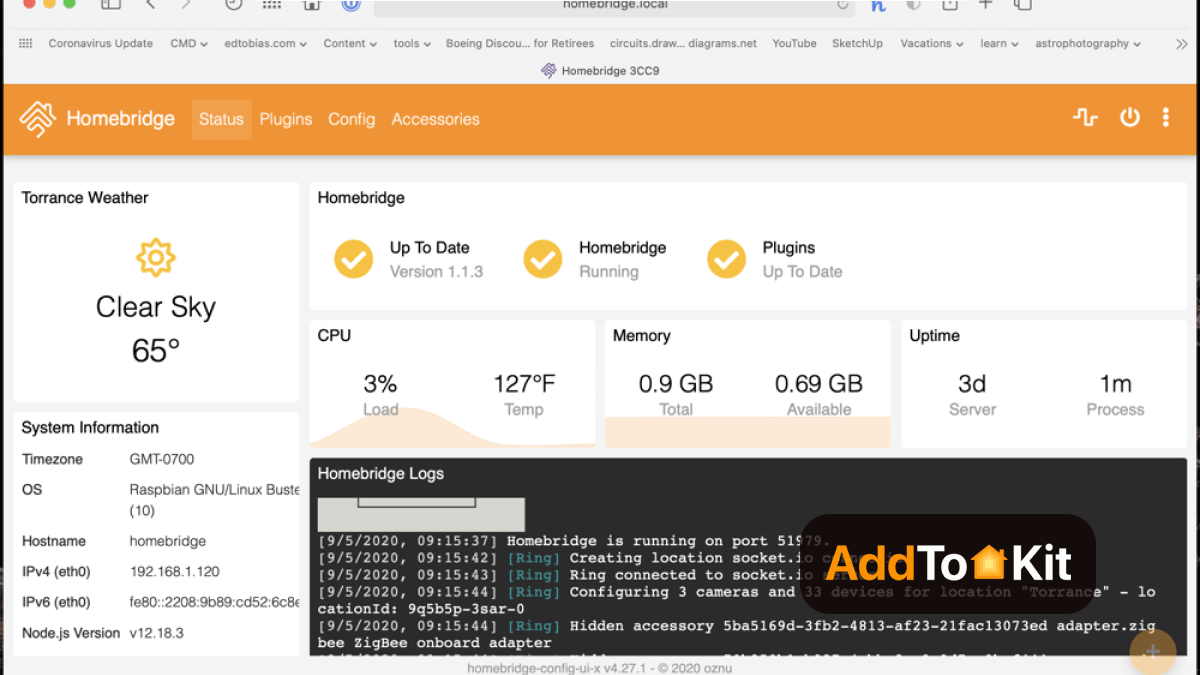
Homebridge is a lightweight nodeJS server. If you’re a techy person, you can use this option to add your Wyze smart devices to Apple HomeKit. It acts as a bridge between HomeKit and non-HomeKit devices.
Add any Wyze devices to HomeKit using the Homebridge solution
You can follow the below instructions to set up HomeKit with your Wyze devices using the Homebridge solution.
- Install Homebridge on Mac/PC
- Install Wyze plugin
- Edit the configuration file
- Run the plugin
- Control devices on HomeKit
Follow our step-by-step guide to integrate your Wyze devices to Apple HomeKit easily.
-
Install Homebridge on Mac/PC
- Go to homebridge.io
- Download the Homebridge app if you do not already have it.
- Install Homebridge on your computer.
- Open the Homebridge program.
-
Install WYze Plugin
- On the main menu, click the Plugins option.
- Search for the Wyze product you want to set up to use with HomeKit.
- Click the plugin installation from the search results.
- After a minute or so, the plugin should be installed.
-
Edit the configuration file
Configure the plugin for the device that you are setting up.
{
"platforms": [
{
"platform": "WyzeSmartHome",
"name": "Wyze",
"username": "YOUR_EMAIL",
"password": "YOUR_PASSWORD",
"keyId": "",
"apiKey": "",
"mfaCode": "YOUR_2FA_AUTHENTICATION_PIN",
"filterDeviceTypeList": ["OutdoorPlug","Plug"],
"filterByMacAddressList": ["MAC_ADDRESS_1","MAC_ADDRESS_2"]}
]
}
Click the restart Homebridge button on the top right-hand side of the screen. Wait for Homebridge to restart.
-
Control devices on HomeKit
You now should have your setup working with your selected device. You can now use Siri to control that device using commands like “Hey Siri, turn on the light” or “Hey Siri, show me the front door camera.”
Wyze Homebridge setup is easy with the AdToHomeKit solution. This provides a step-by-step guide to add your Wyze to HomeKit. So, you don’t need to bother difficult setup process.
Hey there! Interested in what you are reading right now? If so, read more:
How to Add Any Smart Devices to Apple HomeKit
How to Add Any Hive Devices to Apple HomeKit
How to Add Any Tuya Devices to Apple HomeKit
How to Add Any Z-Wave Devices to Apple HomeKit
How to Add Any Honeywell Devices to Apple HomeKit
How to Add Any Govee Devices to Apple HomeKit
Wyze Smart Devices and HomeKit Support
When considering the Wyze HomeKit support, this device can be integrated with the Apple HomeKit using a third-party solution like AddToHomeKit, ATH Bridge, and HOOBS.
- Wyze Lock HomeKit support
- Wyze Bulb HomeKit support
- Wyze Doorbell HomeKit support
Are Wyze Going to be Compatible with Matter?
Wyze has said that their current Wyze devices can't be upgraded to work with Matter. Right now, Matter only works with a few types of devices, and cameras aren't included yet. More devices, like cameras, will be added later for proper Wyze Matter compatibility.
Troubleshooting Tips
| Action | Details / Tips |
|---|---|
| Check HomeKit Compatibility | Ensure your Wyze device supports HomeKit (Cam, Bulb, Plug, etc.). Verify in the manual or on the Wyze website. |
| Update Software | Update Wyze app (App Store / Google Play) and iOS to the latest version. Ensure HomeKit is set up correctly. |
| Verify HomeKit Setup | Link Wyze account to HomeKit via the Wyze app. Check Home app for devices. Re-add using QR code or manual code if missing. |
| Update Wyze Device Firmware | Update firmware via Wyze app. Confirm you’re using the correct HomeKit QR code. |
| Wi-Fi Network | Use a 2.4 GHz network (Wyze does not support 5 GHz). Ensure network is stable; restart router if needed. |
| Reset & Re-add Device | Perform a factory reset if unresponsive. Remove and re-add in Home app. |
| Restart Devices | Power cycle Wyze device (off → 10 sec → on). Restart iPhone/iPad. |
| Check for Conflicts | Temporarily disconnect other smart home systems (Alexa, Google Home) that may interfere. |
| Permissions & Logs | Ensure HomeKit has location and Bluetooth permissions. Check Home app and Wyze app logs for errors. |
| Reinstall Wyze App | Uninstall and reinstall app to clear configuration glitches, then re-add devices to HomeKit. |
Wyze Cameras for Smart Home Security
- Through the past few years, Wyze has been taking gig steps in creating a powerful camera lineup. Their first 4k camera, Wyze Cam Pan v4, is one proof for it.
- Users can experience 360° panning, 180° tilt, and advanced AI tracking that can follow people, pets, or vehicles automatically. Also, all their cameras support night vision, two-way audio, and customizable motion alerts.
- On the software side, Wyze has released firmware and app updates that improve stability, security, and usability. Features like VerifiedView embed authentication data directly into camera footage, protecting your recordings from unauthorized access.
- The Wyze app now includes a horizontal event timeline, better motion detection zone controls, and dark mode, making it easier to review footage and manage multiple cameras from one interface.
- Wyze cameras have also advanced AI-powered smart features. The Descriptive Alerts function, available through Cam Plus or Pro services, provides clear notifications about what’s happening rather than generic motion alerts.
Conclusion
Homebridge was a bit of a workaround, but it only took a few minutes to set up with the AddToHomeKit solution, and it worked perfectly. Some Wyze things, like Wyze Cam, Plug, and lock can work directly with HomeKit with this amazing solution. The other option is by using a thing called the ATH Bridge and HOOBS, which you just plug in, and it makes everything work together.
FAQs
No, Wyze doesn’t support Apple HomeKit due to operating system incompatibility. But you can integrate Wyze devices with Apple HomeKit using AddToHomeKit Solution
Yes. Wyze app supports to Android (7.0+) and iOS (14.0+) devices.
- Logitech Circle
- Eve Outdoor Cam
- eufy Security Solo IndoorCam P24
- Aqara 2K Security Indoor Camera Hub G3
- Logitech Circle View Doorbell
- eufyCam 2C
- eufy Security Solo IndoorCam C24
- Eve Cam
Yes, Wyze Camera app is free to download and use. You can set up and control your Wyze cameras, view live video, receive basic motion alerts, use two-way audio, and access local recordings without paying anything.
Wyze camera can be recorded without Wi-Fi if you use local storage (a microSD card).